YRStar Tutorial
1. Sign-In and Account Management
1.1 Register and Sign In to the Admin Console
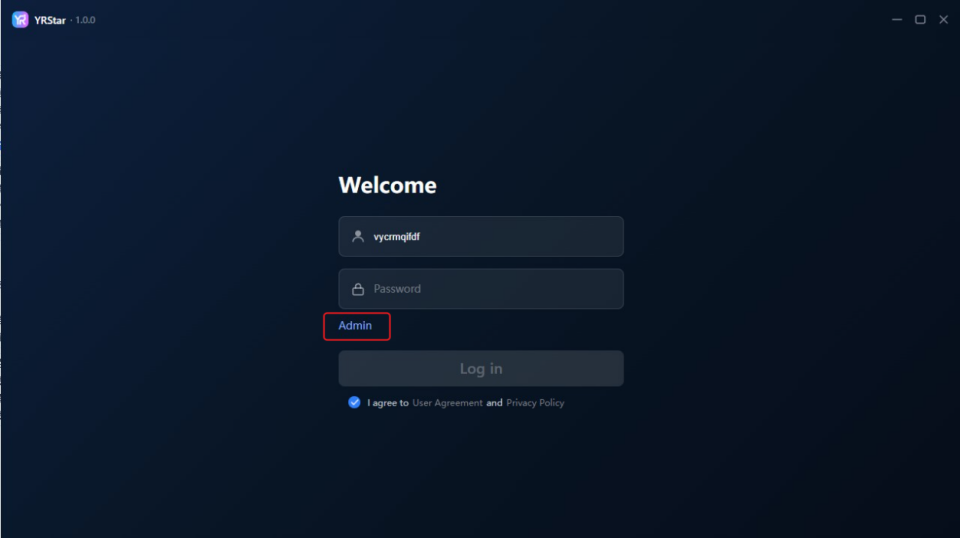
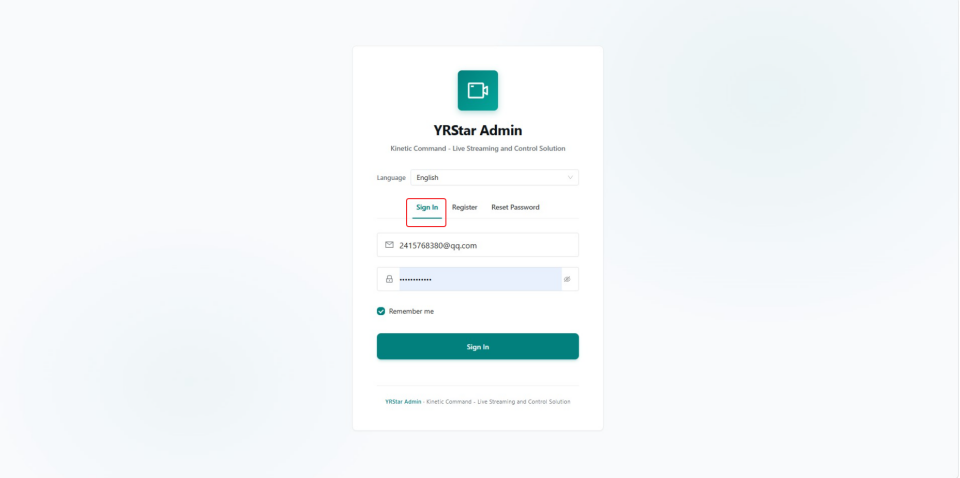
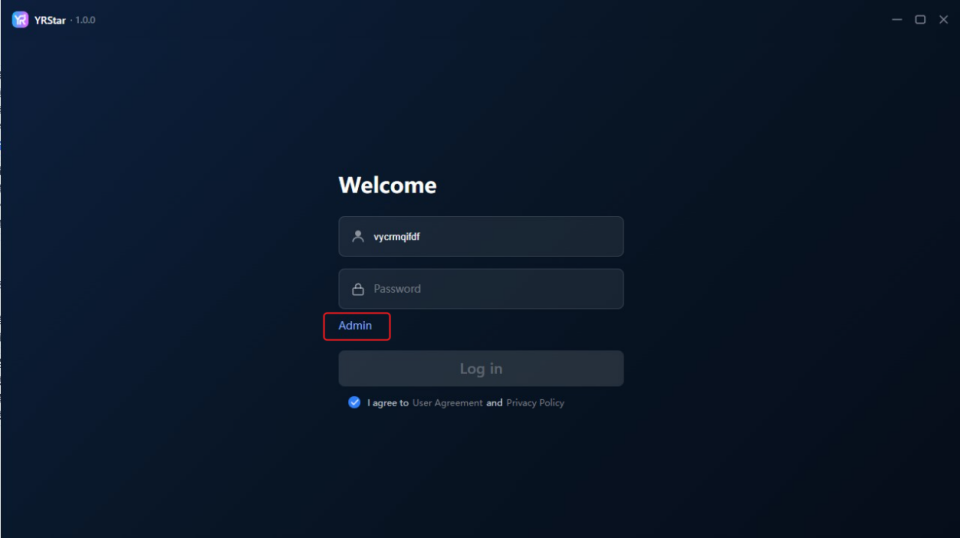
Step 1: Open the YRStar client and click Admin on the login page to open the admin console in your browser.
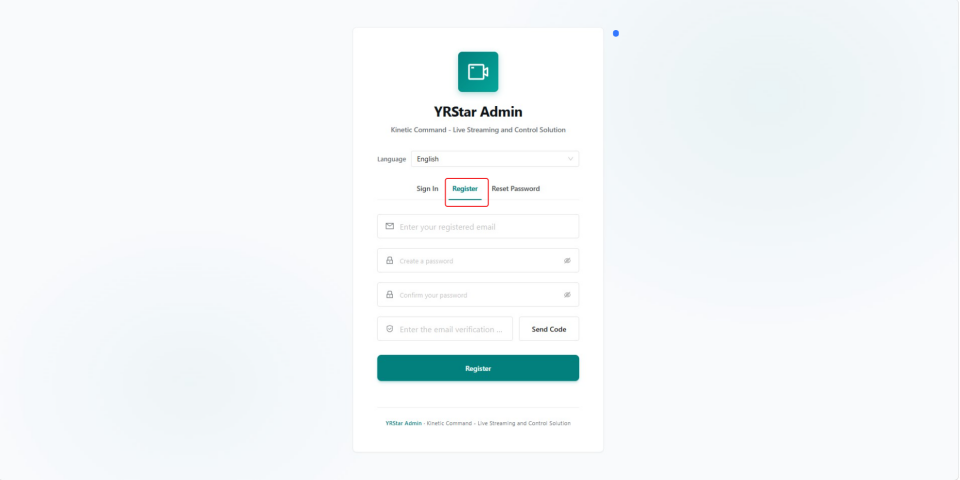
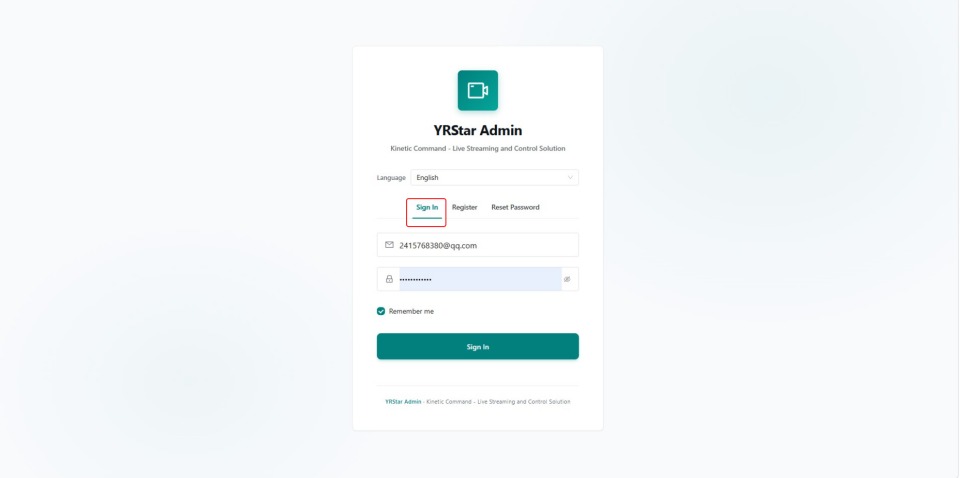
Step 2: On the YRStar Admin page, first-time users click Register and sign up with an email address and verification code.
Step 3: Go back to Sign In, enter the email and password you just registered, and click Sign In. Select Remember Me to stay signed in on this browser.
1.2 Apply for an Operator Account
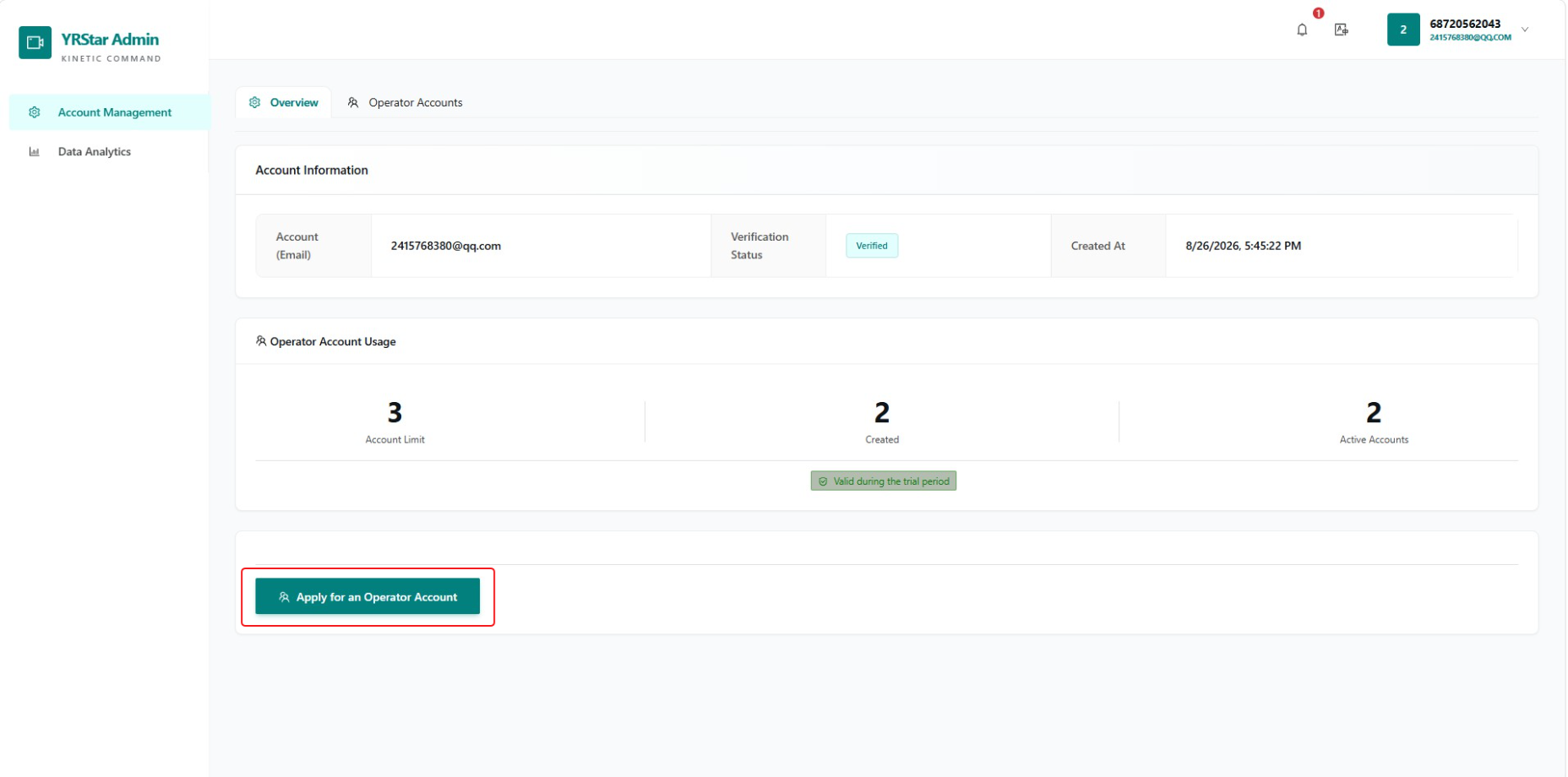
Step 1: On the Operator Accounts page, click Apply for an Operator Account. The page also shows your quota: the account limit, how many you have created, and how many are currently active.
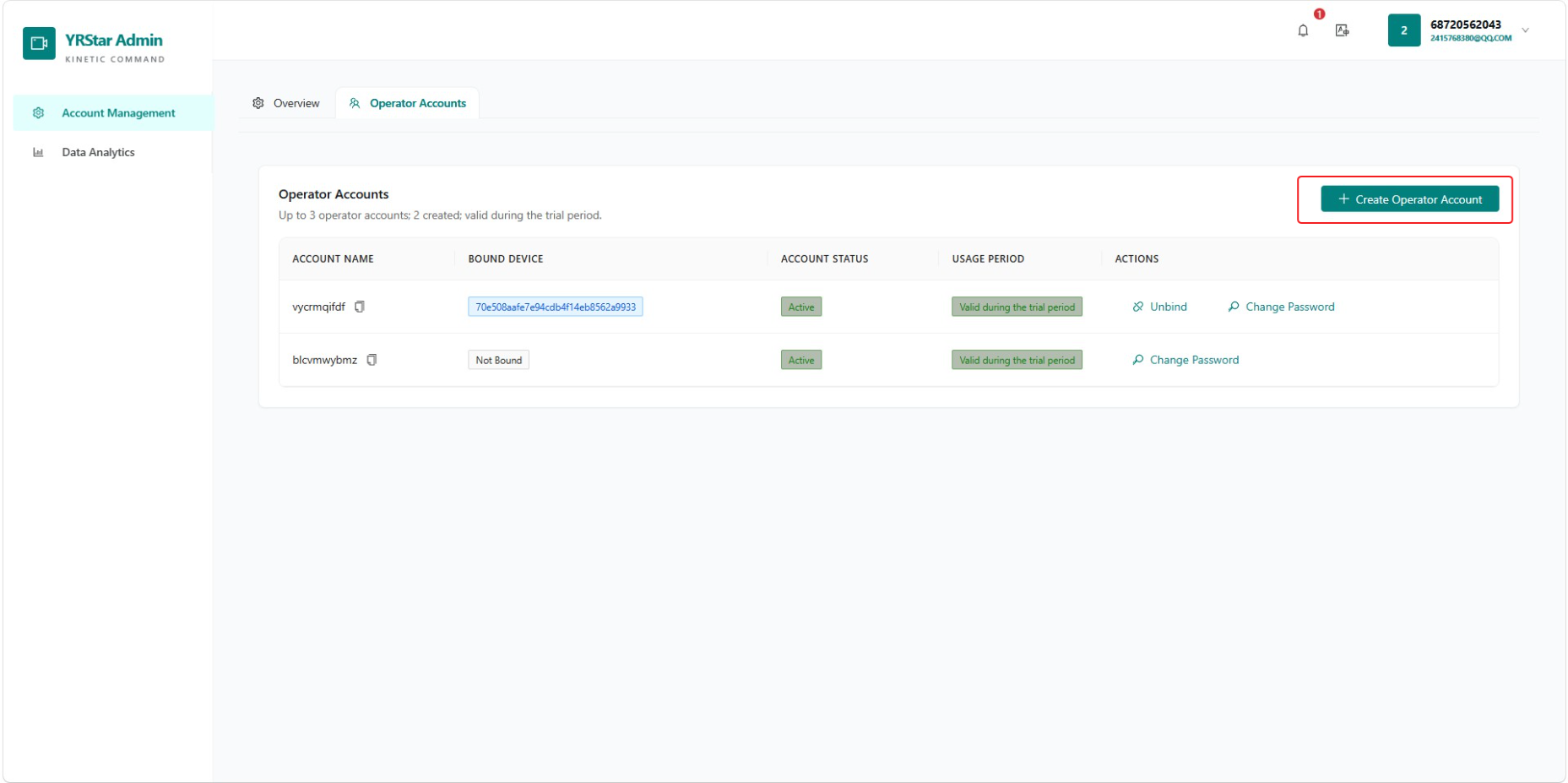
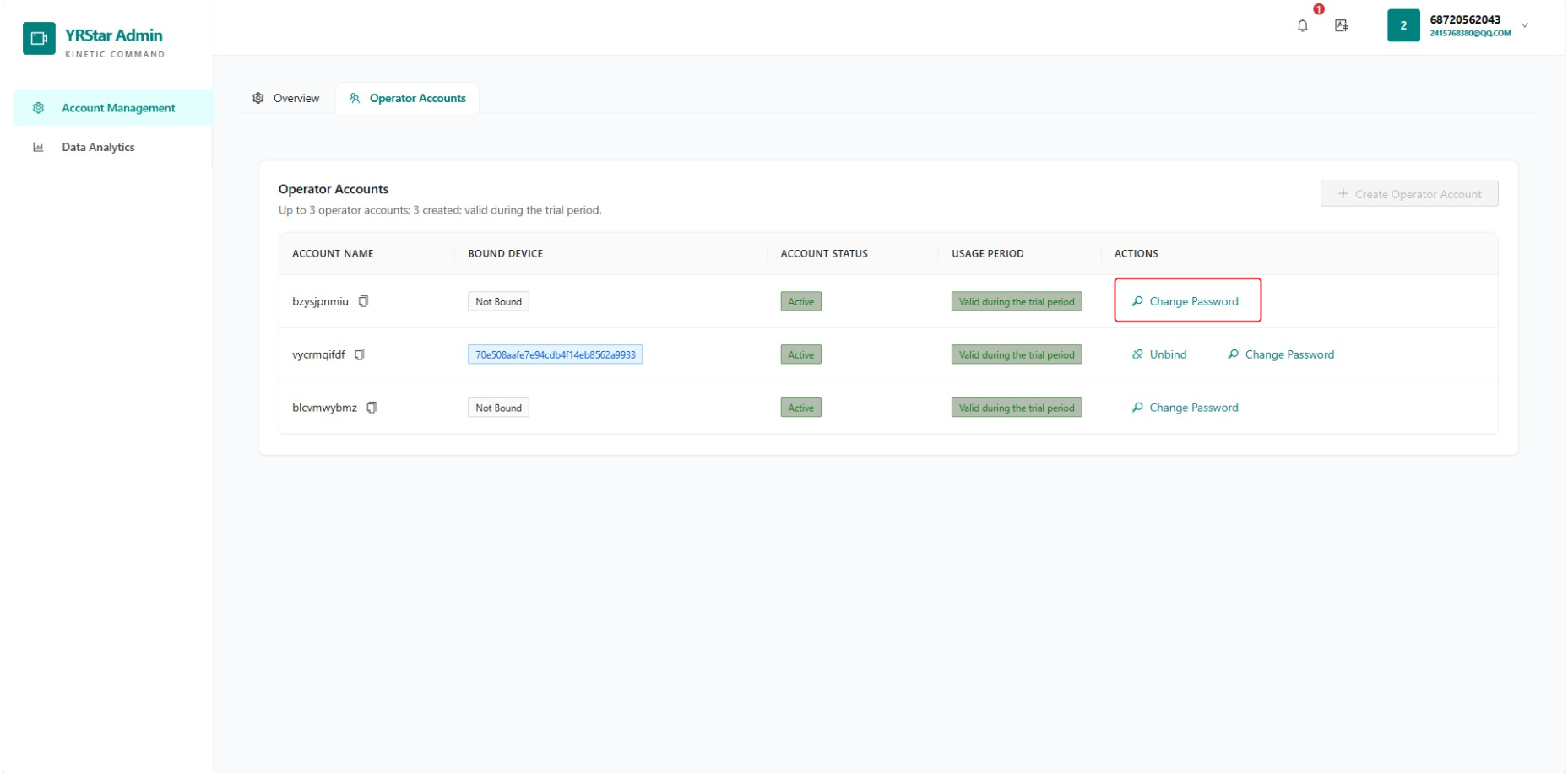
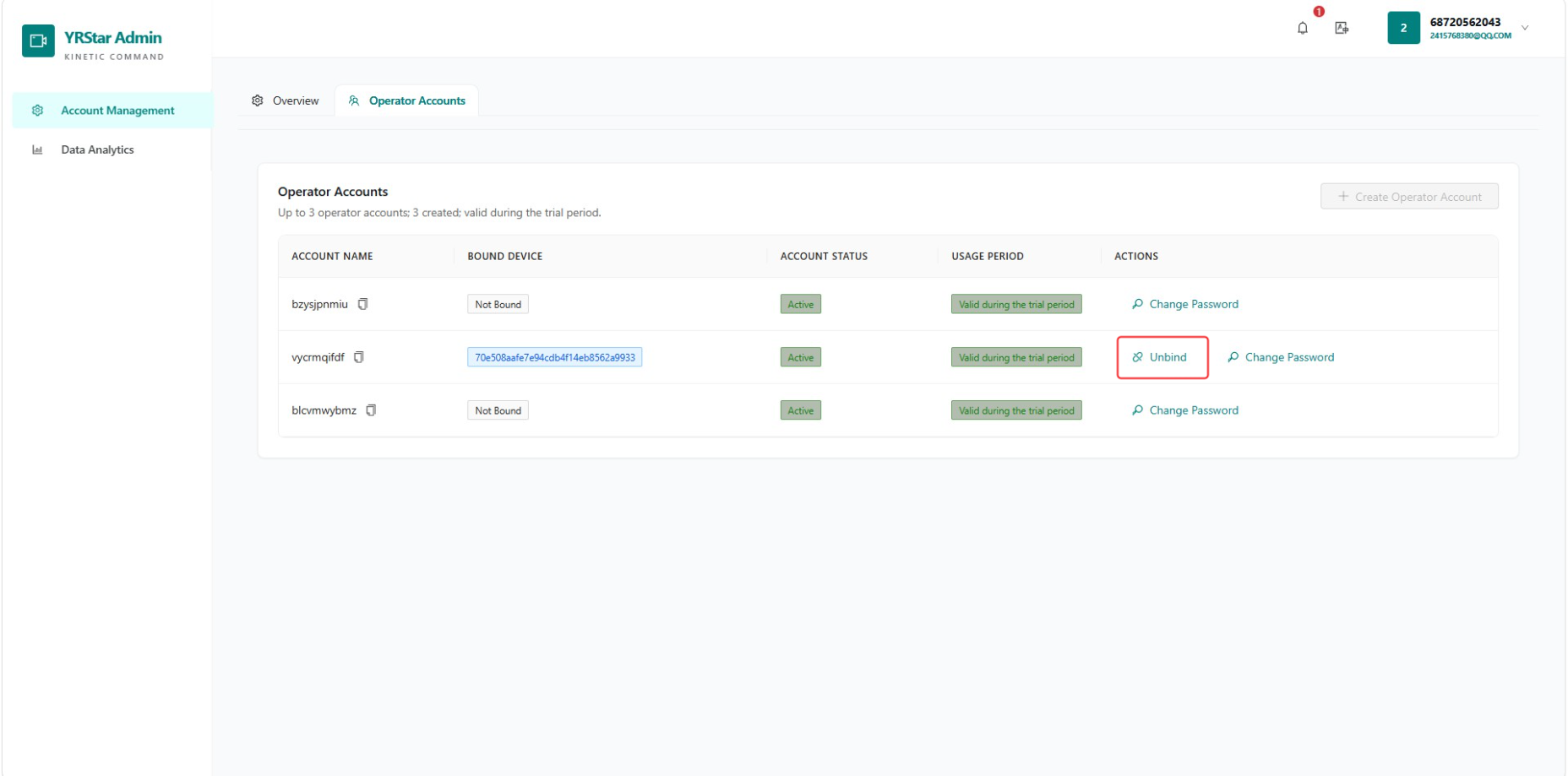
Step 2: Click Create Operator Account. The list shows each account's status, bound device, and validity period, plus the Unbind and Change Password actions.
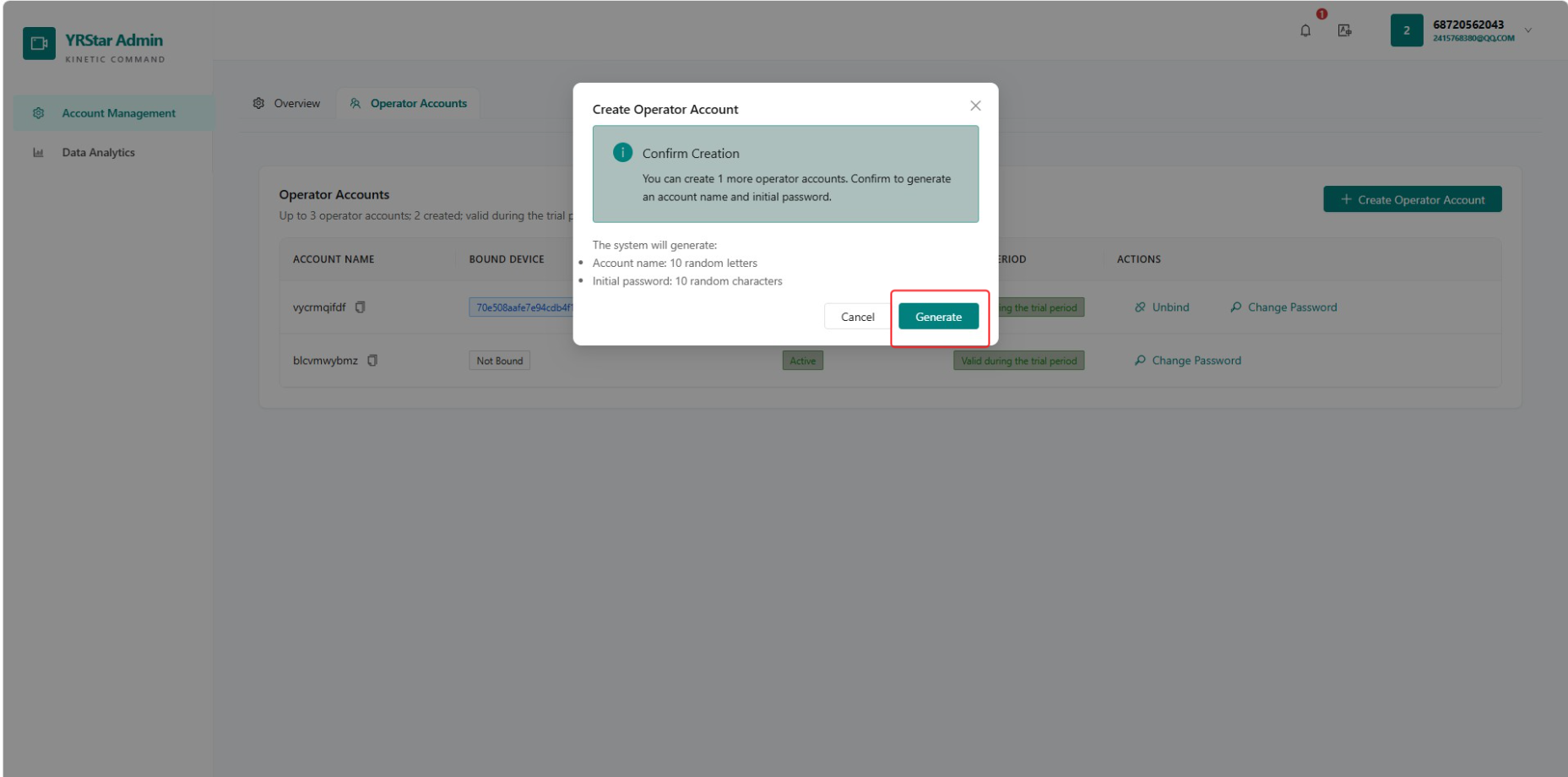
Step 3: Click Generate.
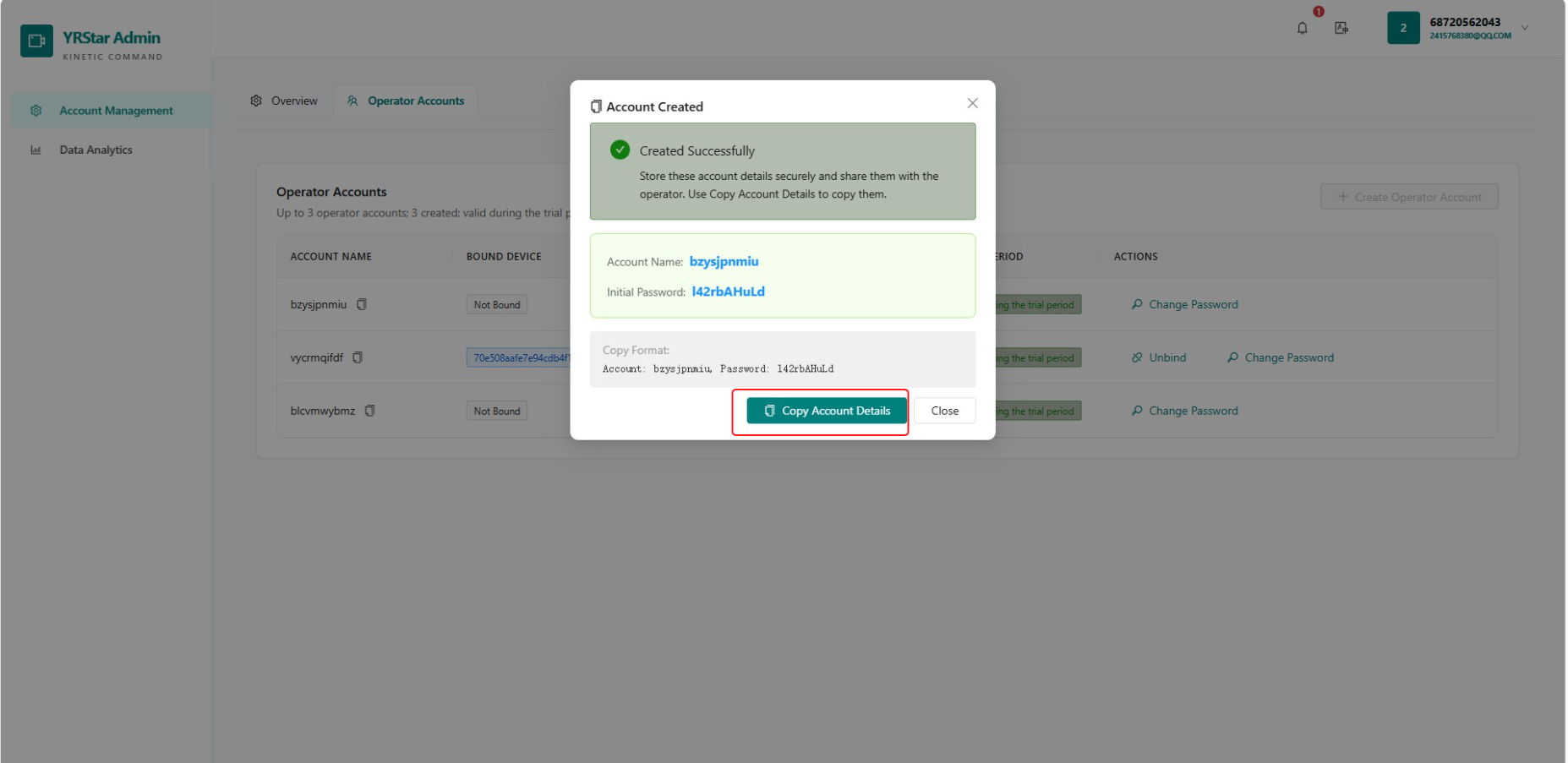
Step 4: Click Copy Account Info to copy the generated username and password.
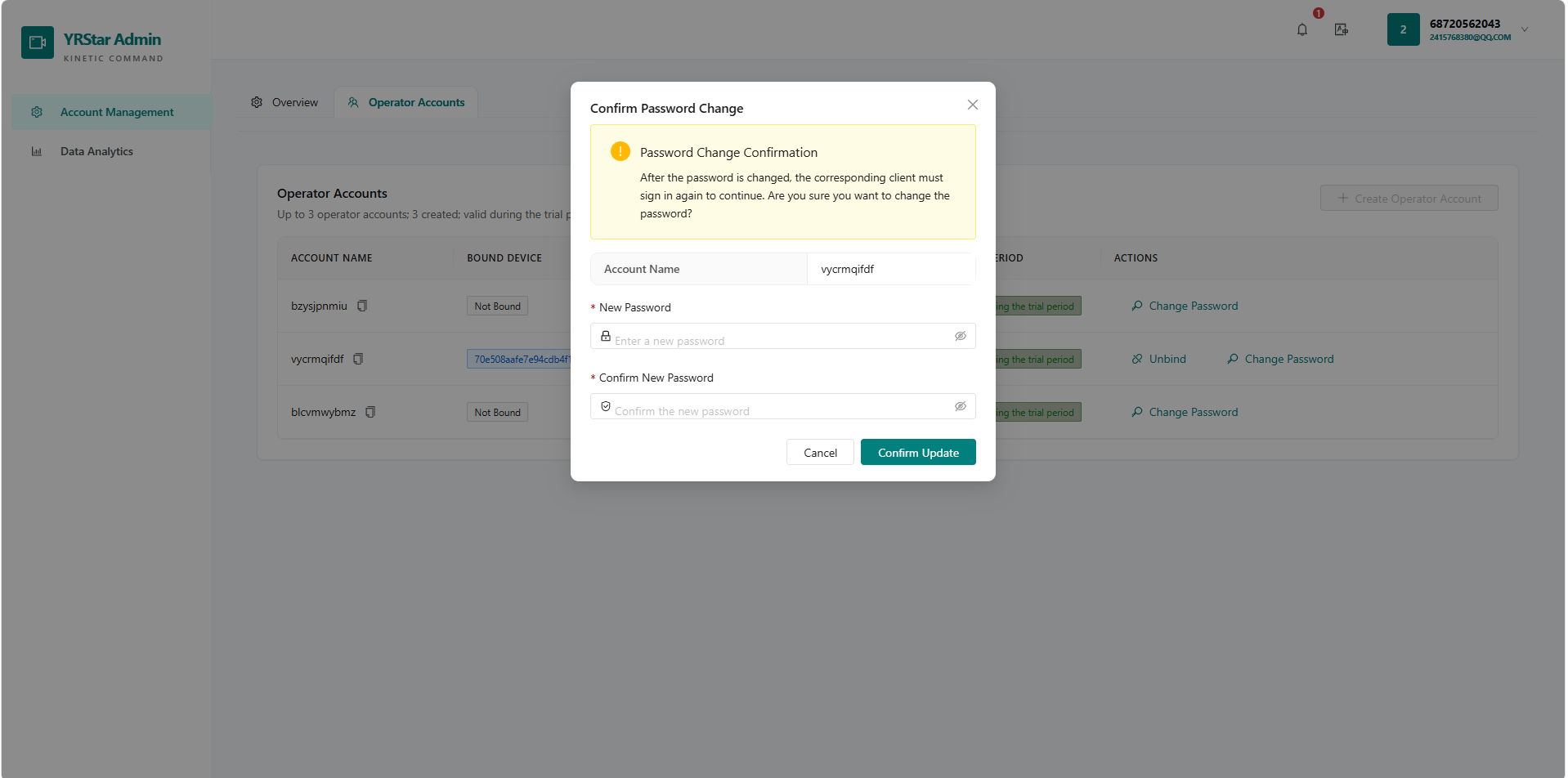
The password is shown only once, so save it right away. If you lose it, use Change Password in the operator account list to set a new one.
1.3 Sign In to the Client
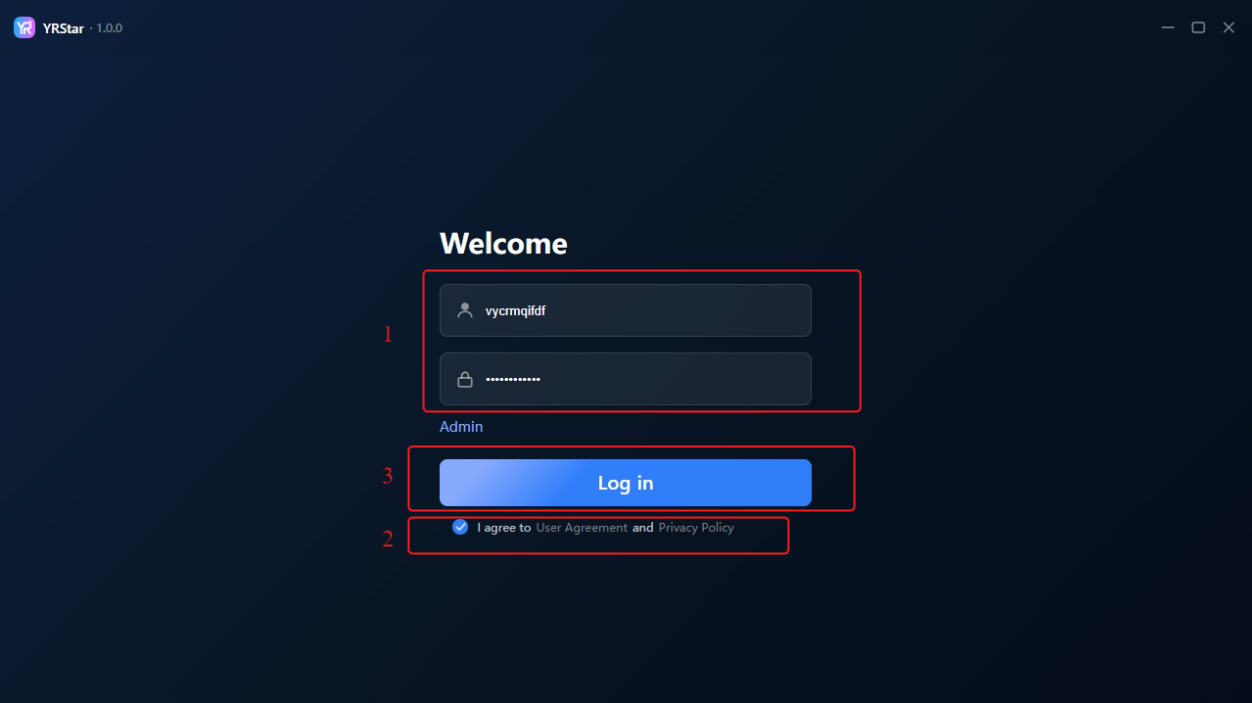
Paste the copied username and password, select I agree to the User Agreement and Privacy Policy, then click Log in.
1.4 Binding and Unbinding Devices
An operator account is bound to the first device it logs in on, and can be bound to only one device at a time. To log in on another device, click Unbind for that account in the admin console first.
2. Adding and Managing Streamer Teams
2.1 Create a Streamer Team
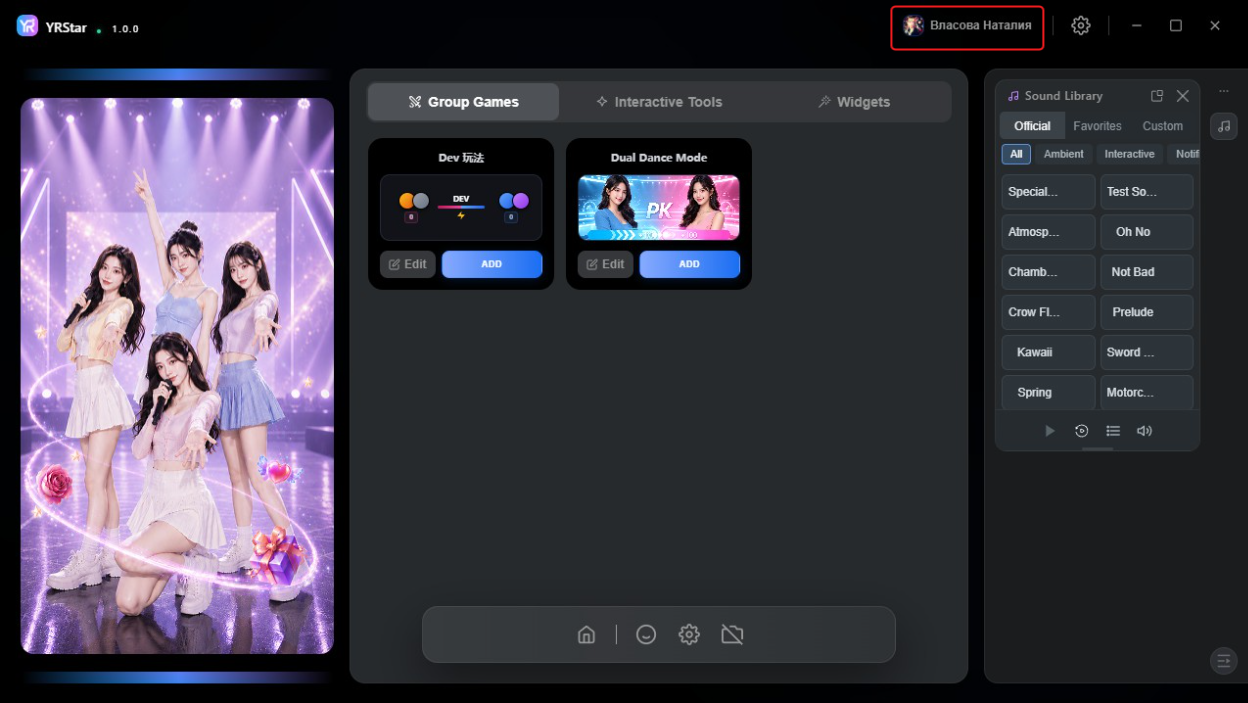
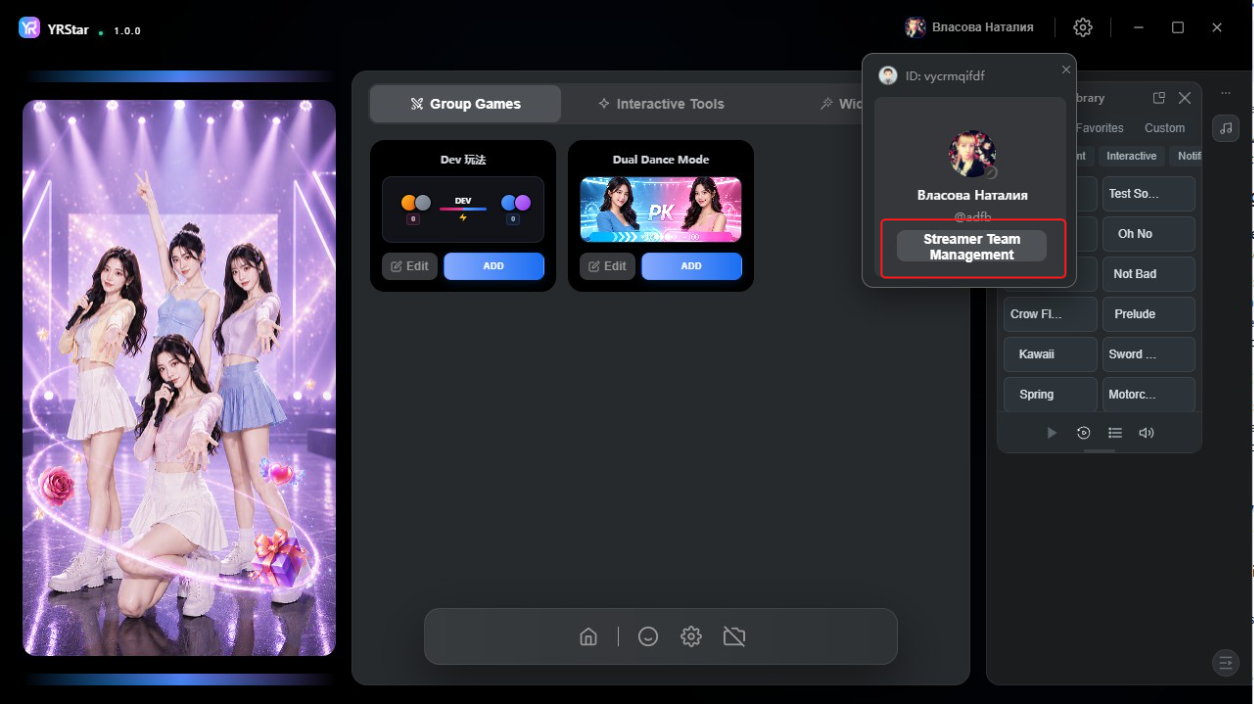
Step 1: In the YRStar client, click your avatar or account name in the top-right corner, then click Streamer Team Management.
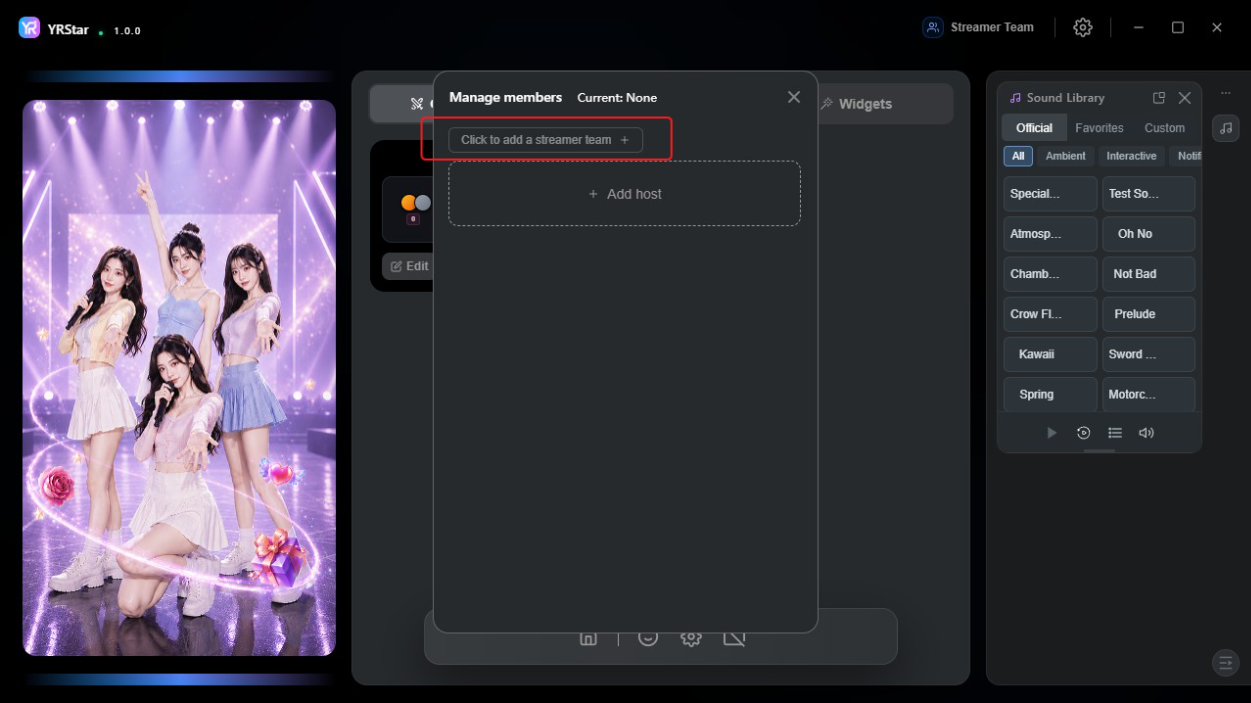
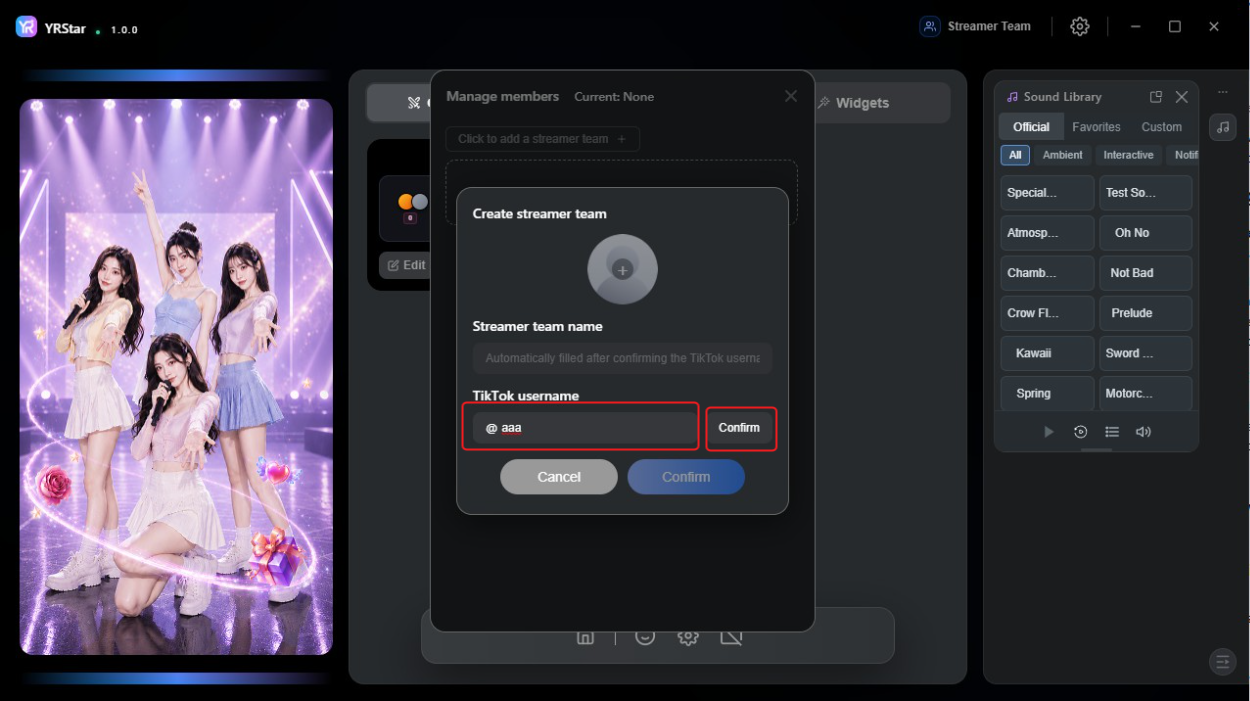
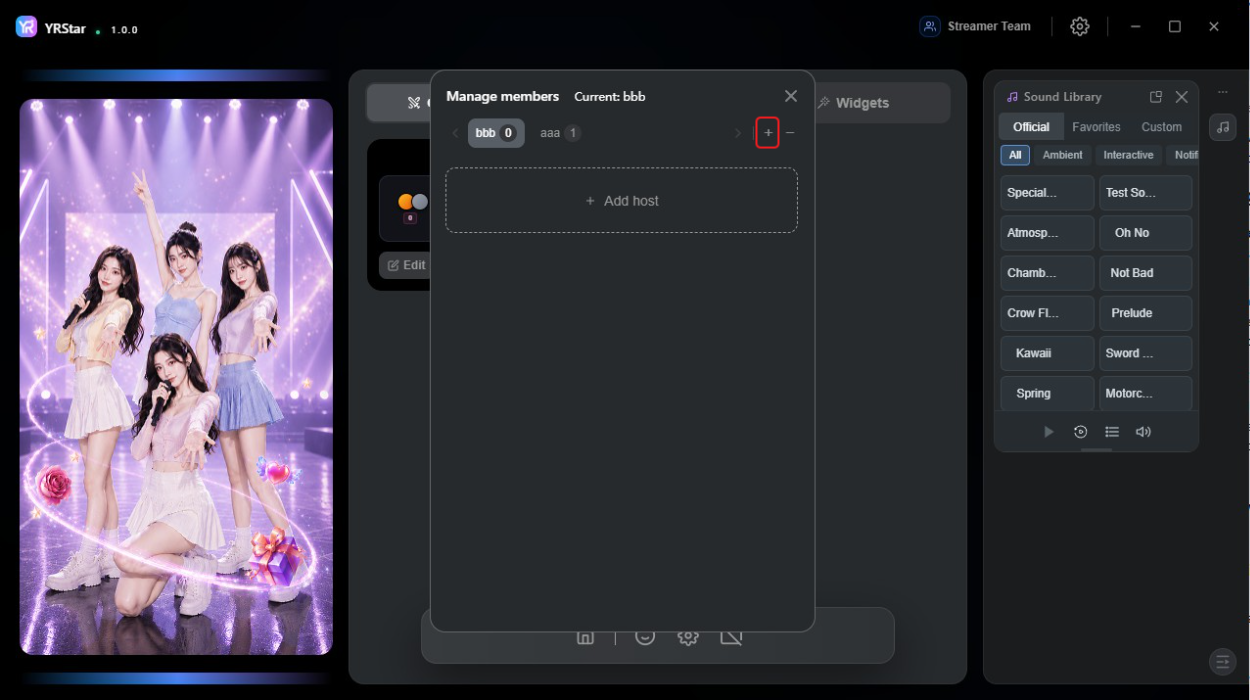
Step 2: In the Manage members window, click Click to add a streamer team.
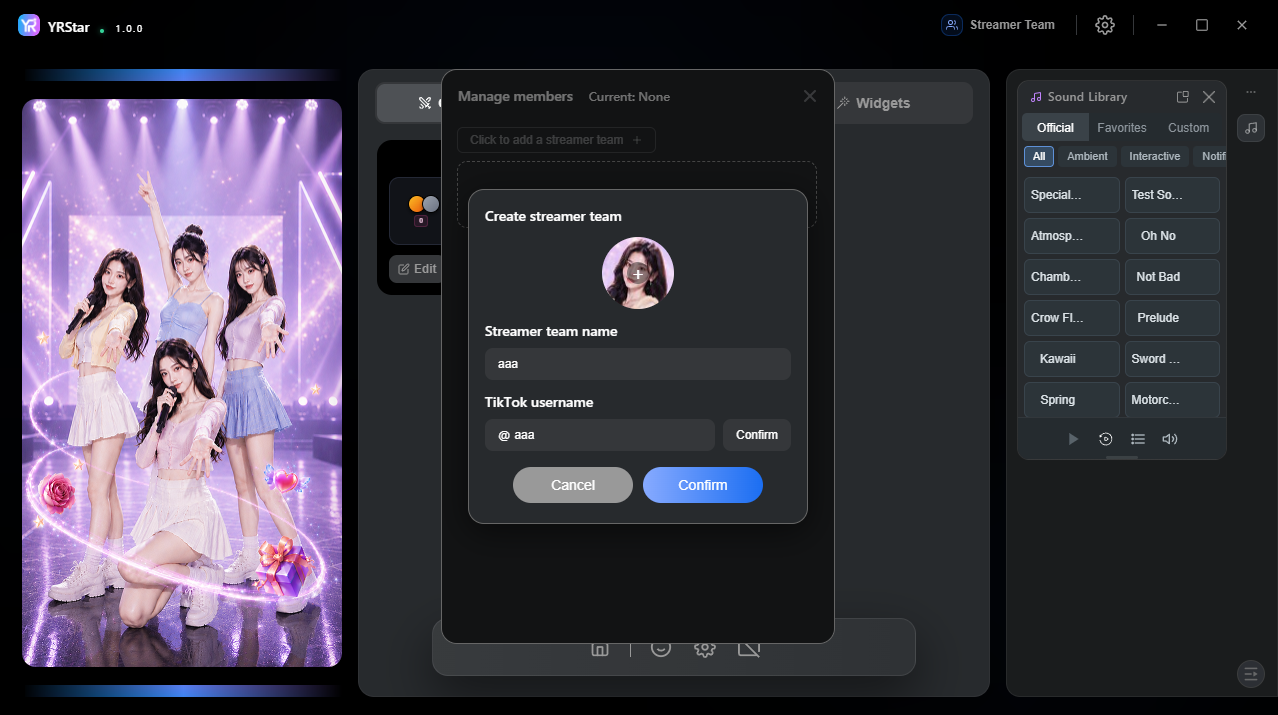
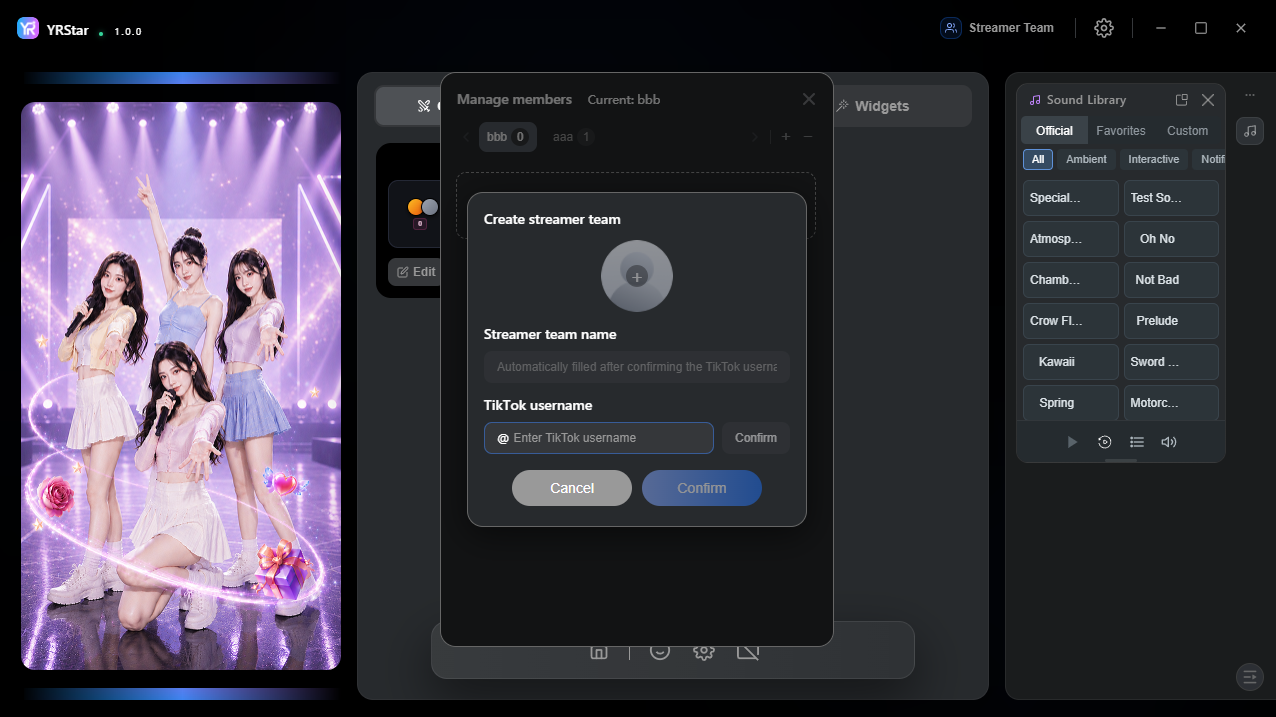
Step 3: In the Create streamer team dialog, enter the TikTok username and click Confirm. The Streamer team name and avatar are filled in automatically from the TikTok account.
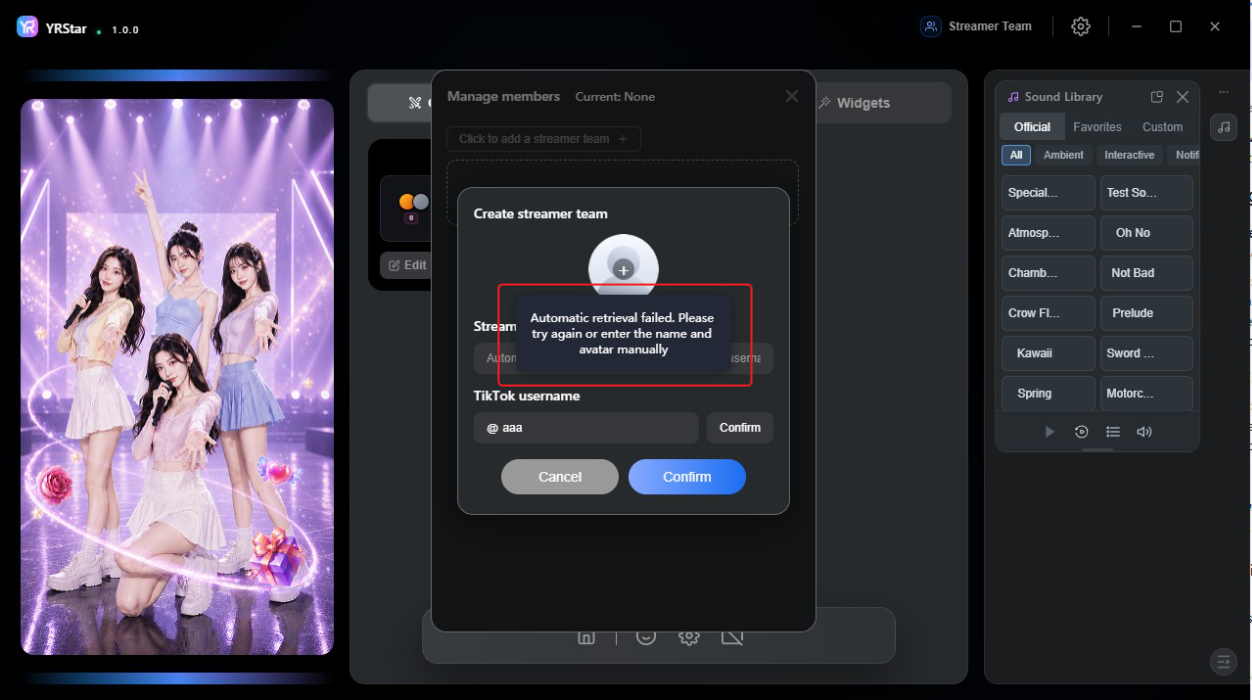
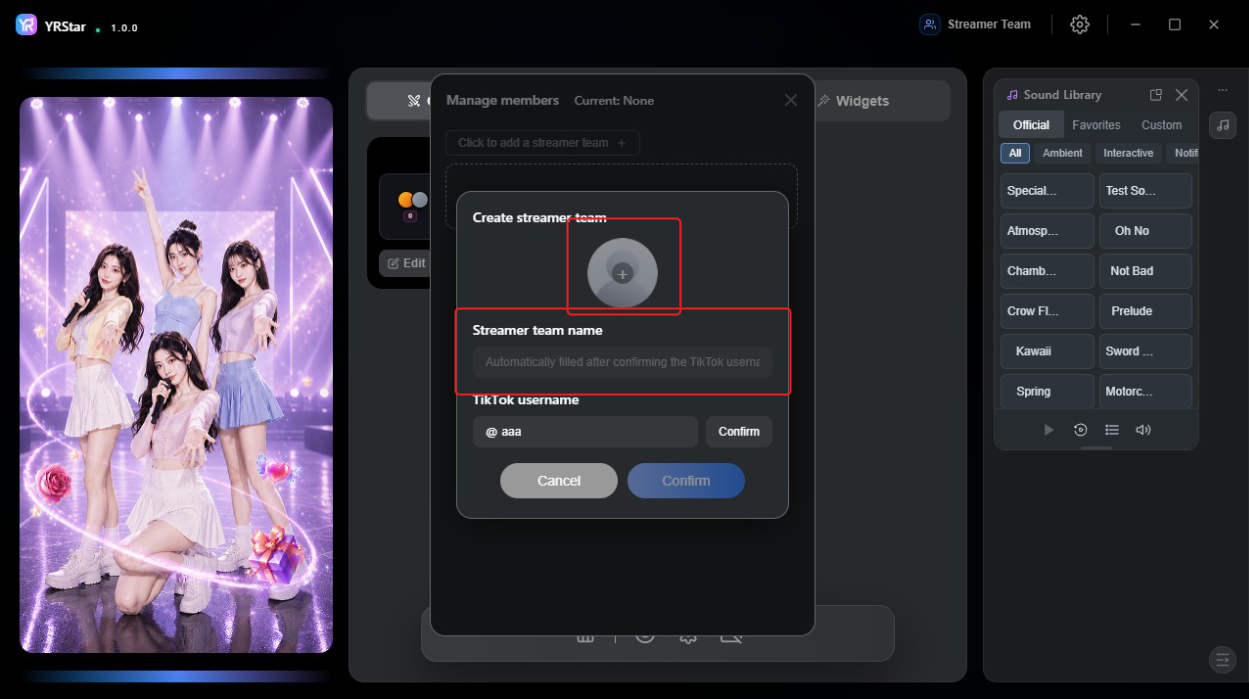
If you see Automatic retrieval failed, click Confirm to try again, or enter the team name and upload the avatar manually.
2.2 Adding, Removing, and Switching Teams
Click + to create another team. The Create streamer team dialog opens and the flow is the same as above.
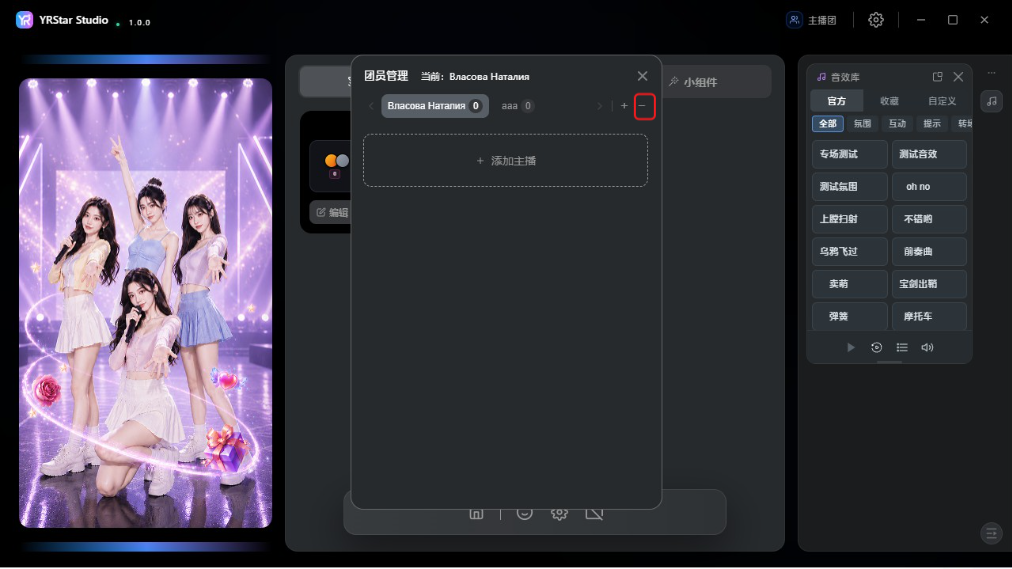
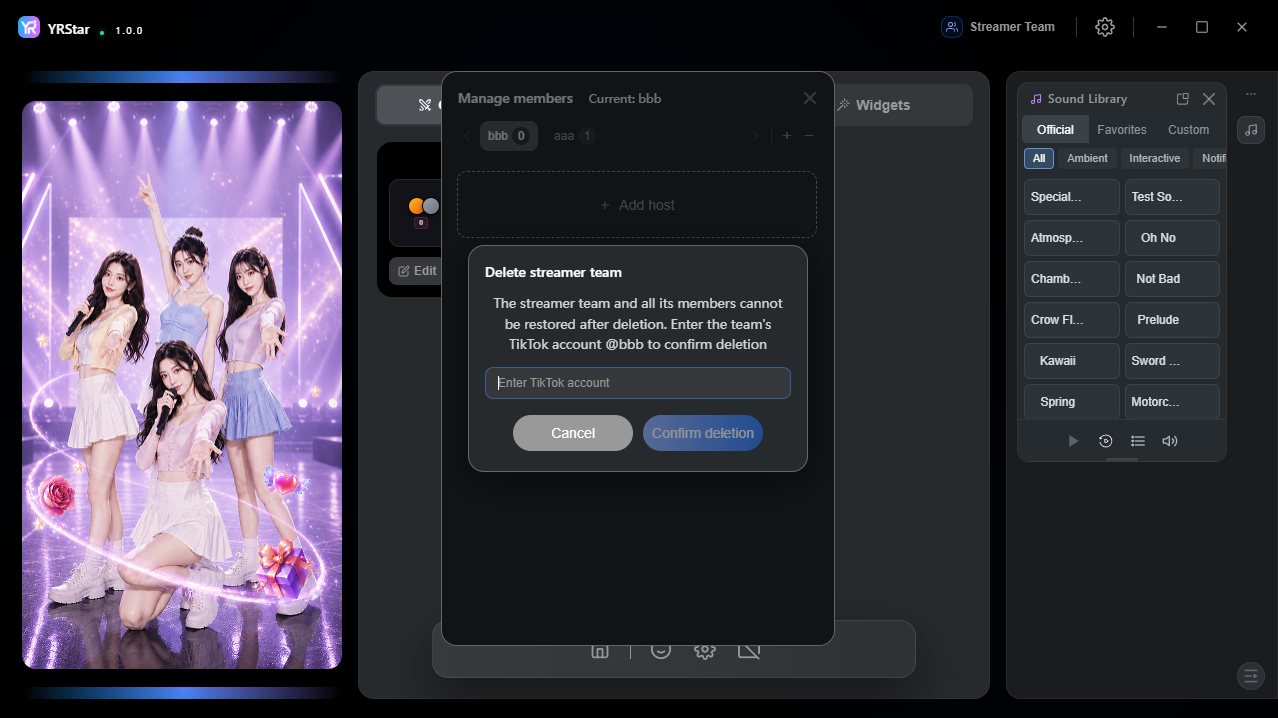
Click - to delete the current team. To confirm, type the team's TikTok account (for example @bbb) and click Confirm deletion.
Deleting a team also deletes all of its members, and this cannot be undone.
Click the team name at the top of the Manage members window to switch teams. The member list reloads for the team you select.
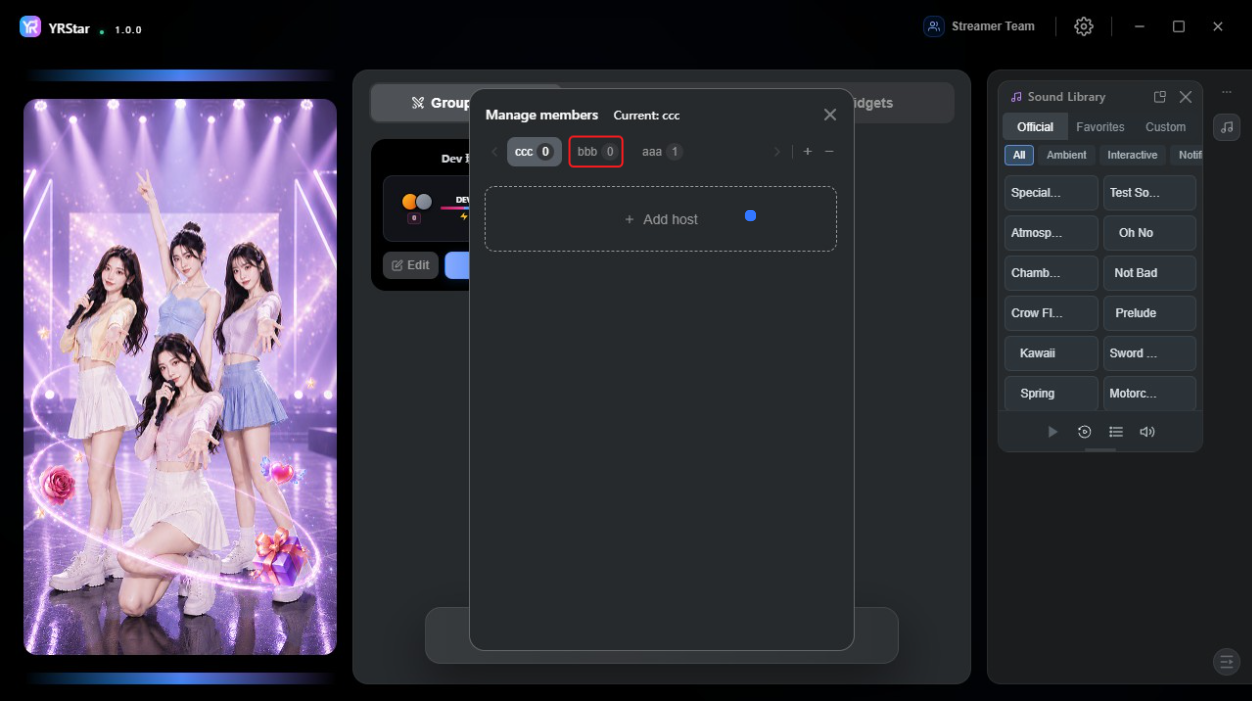
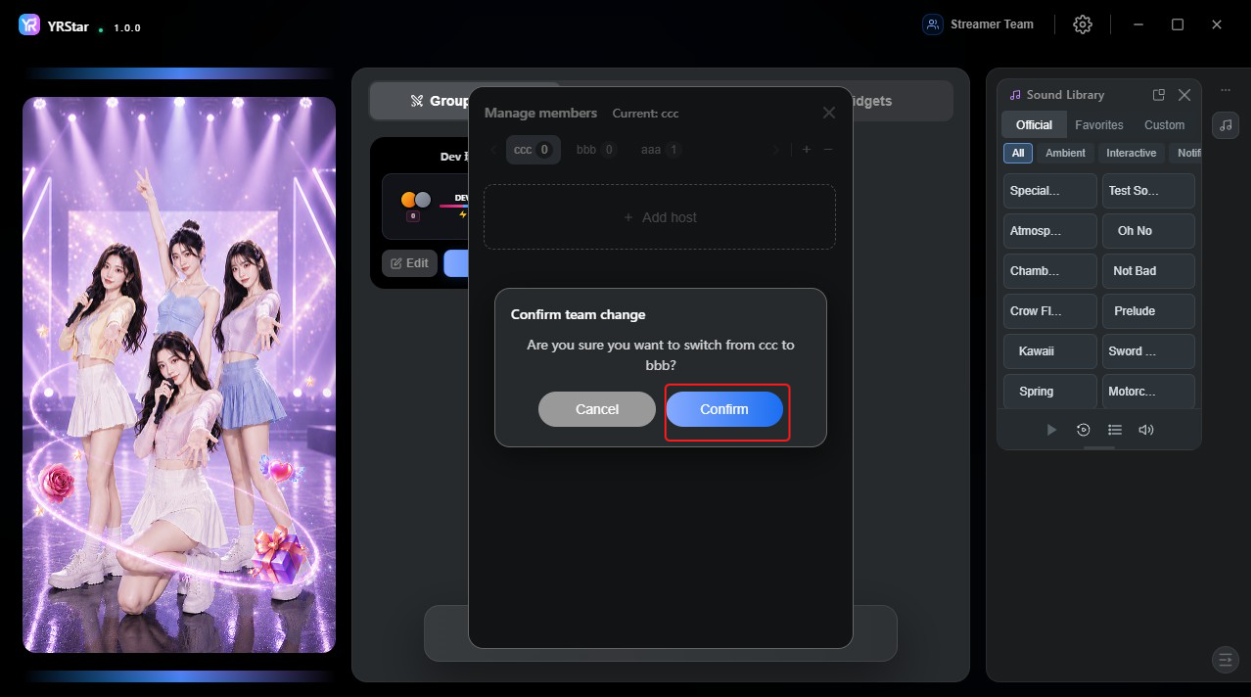
2.3 Add a Streamer
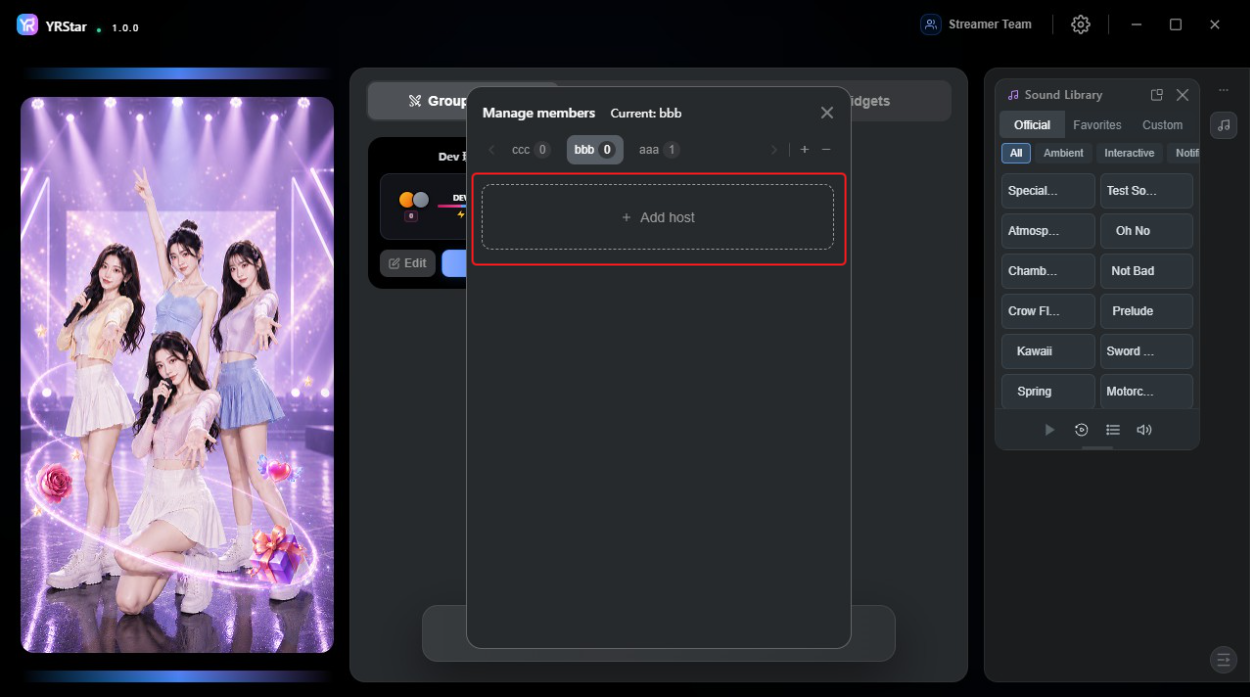
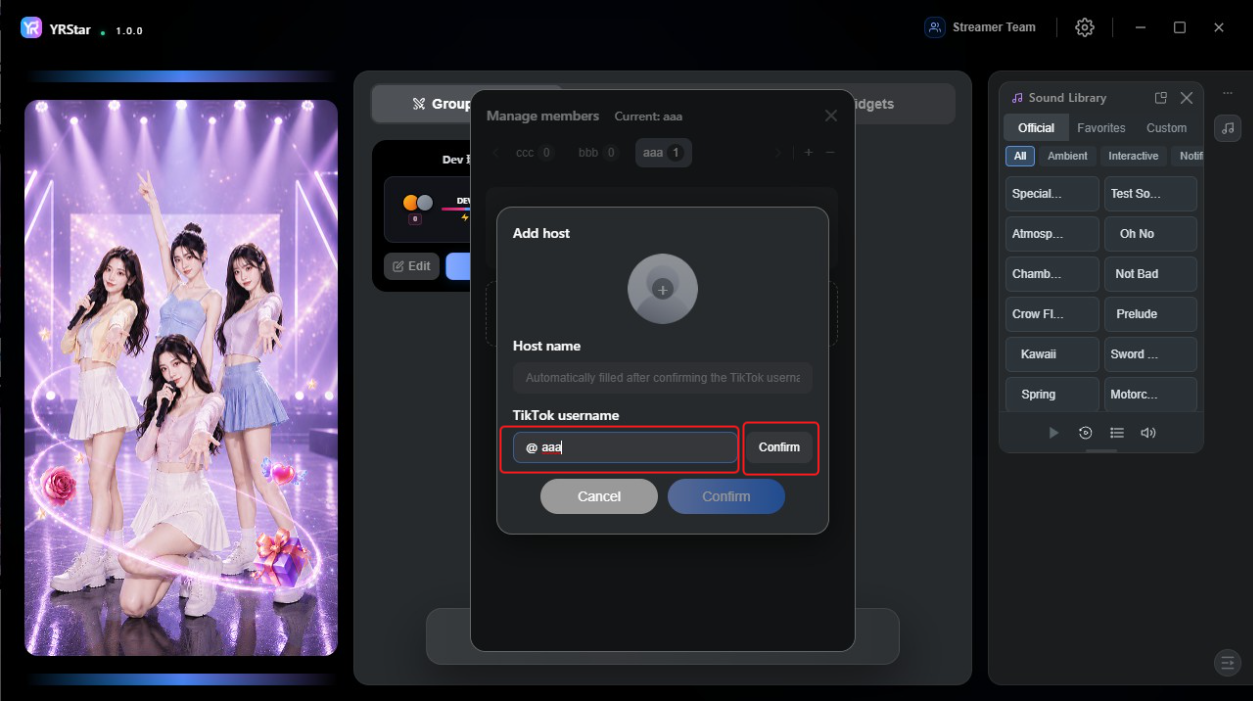
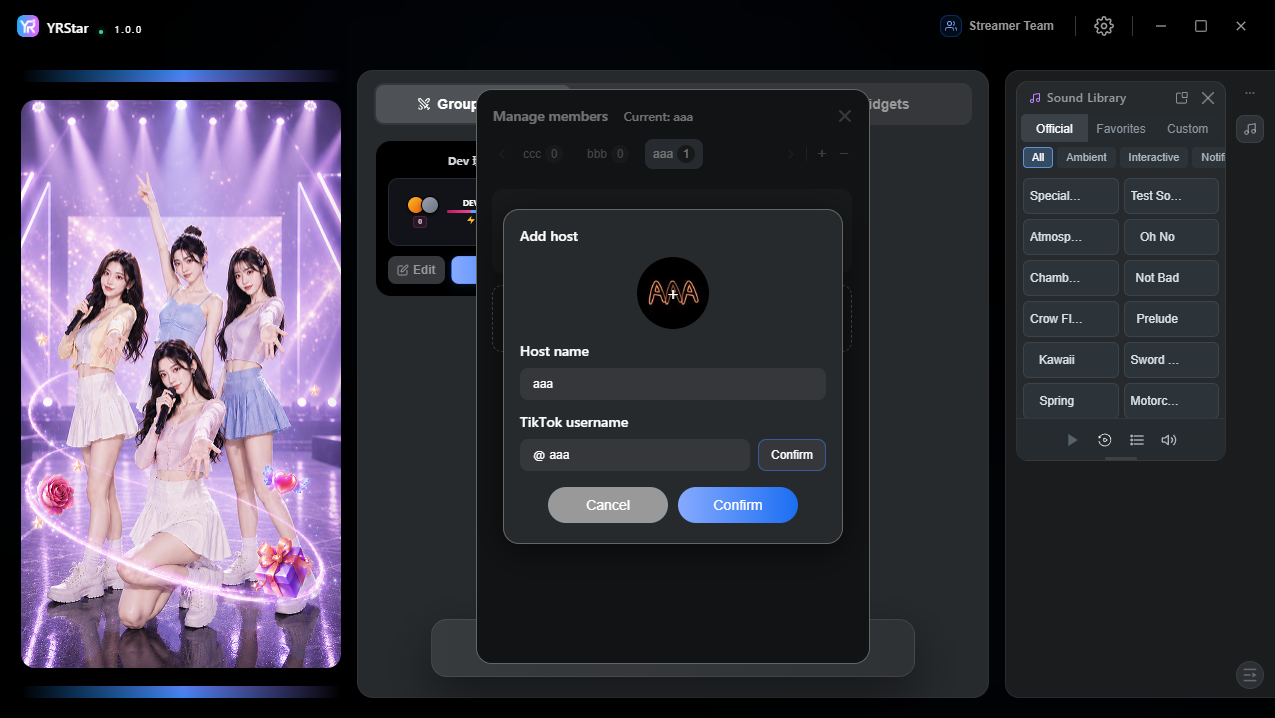
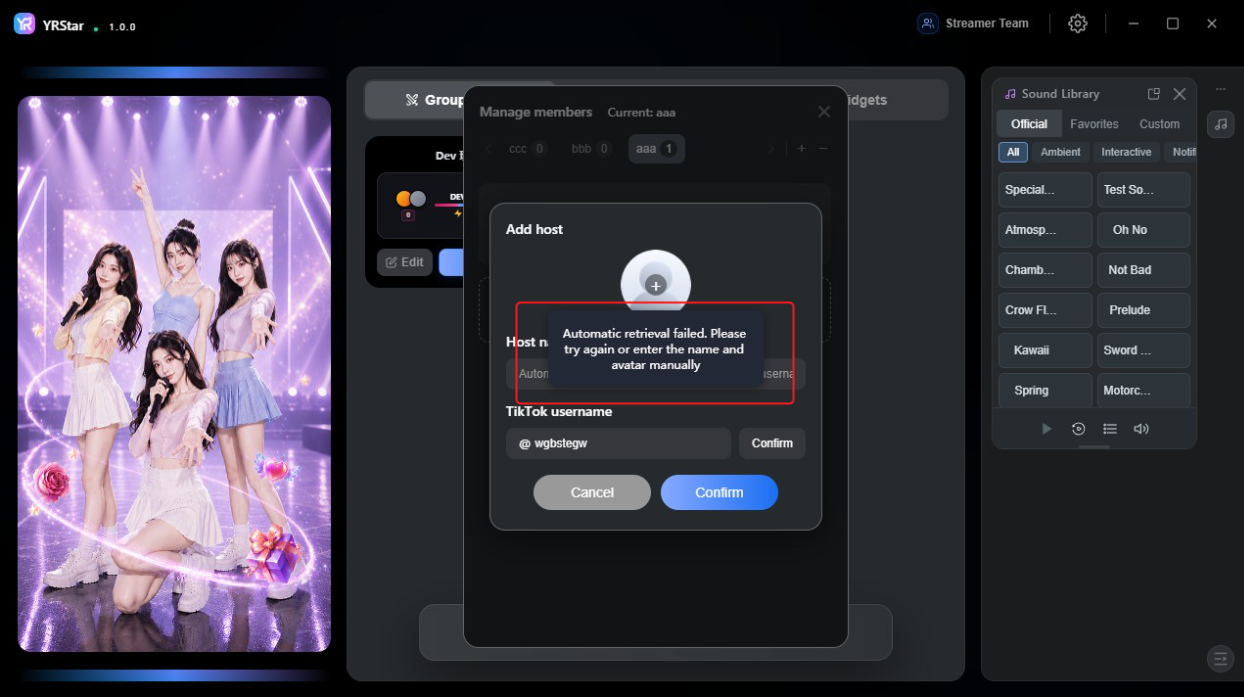
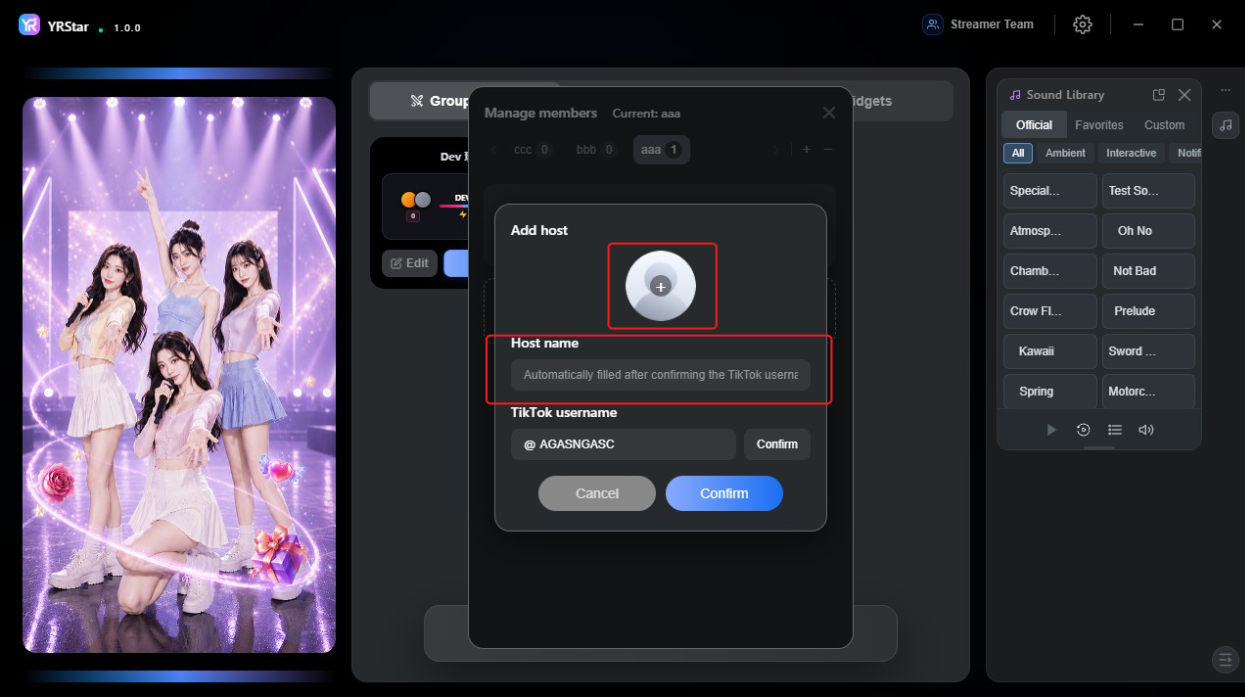
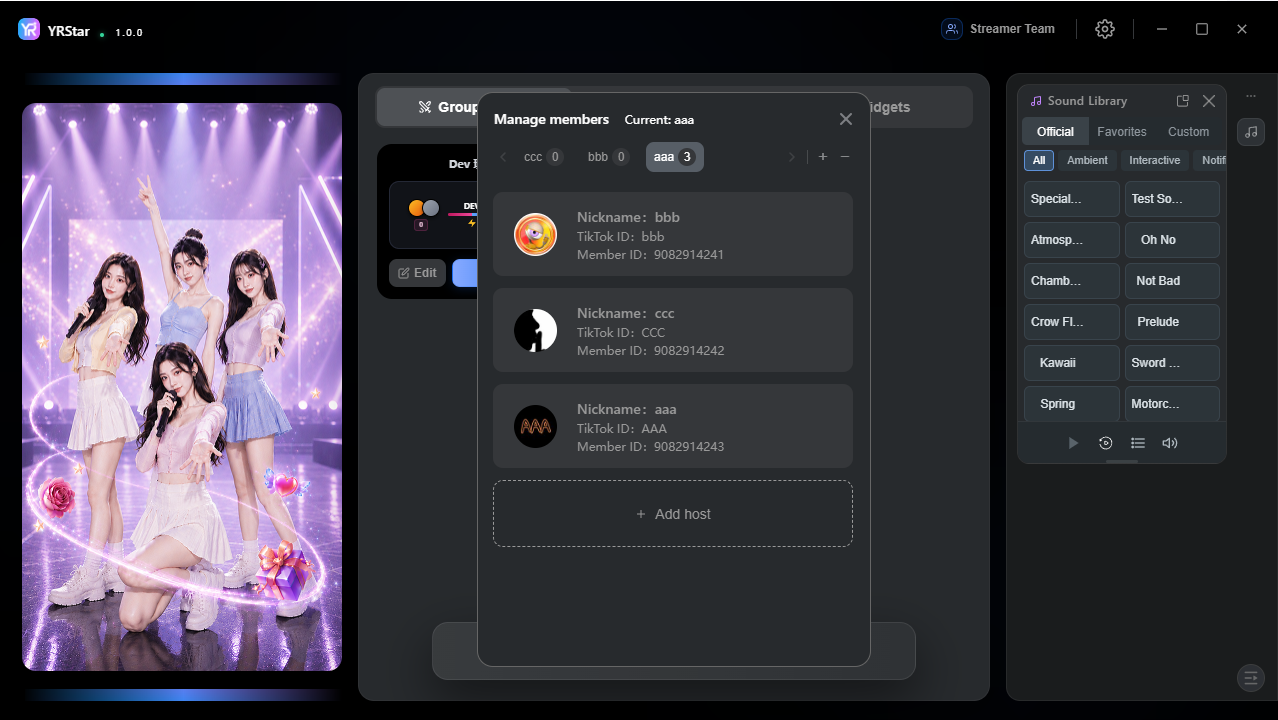
In Manage members, switch to the target team, click + Add host, enter the TikTok username, and click Confirm. The Host name and avatar are filled in automatically from the TikTok account.
If you see Automatic retrieval failed, try again or enter the host name and upload the avatar manually. Each streamer team can have up to 30 hosts.
3. Settings Menu
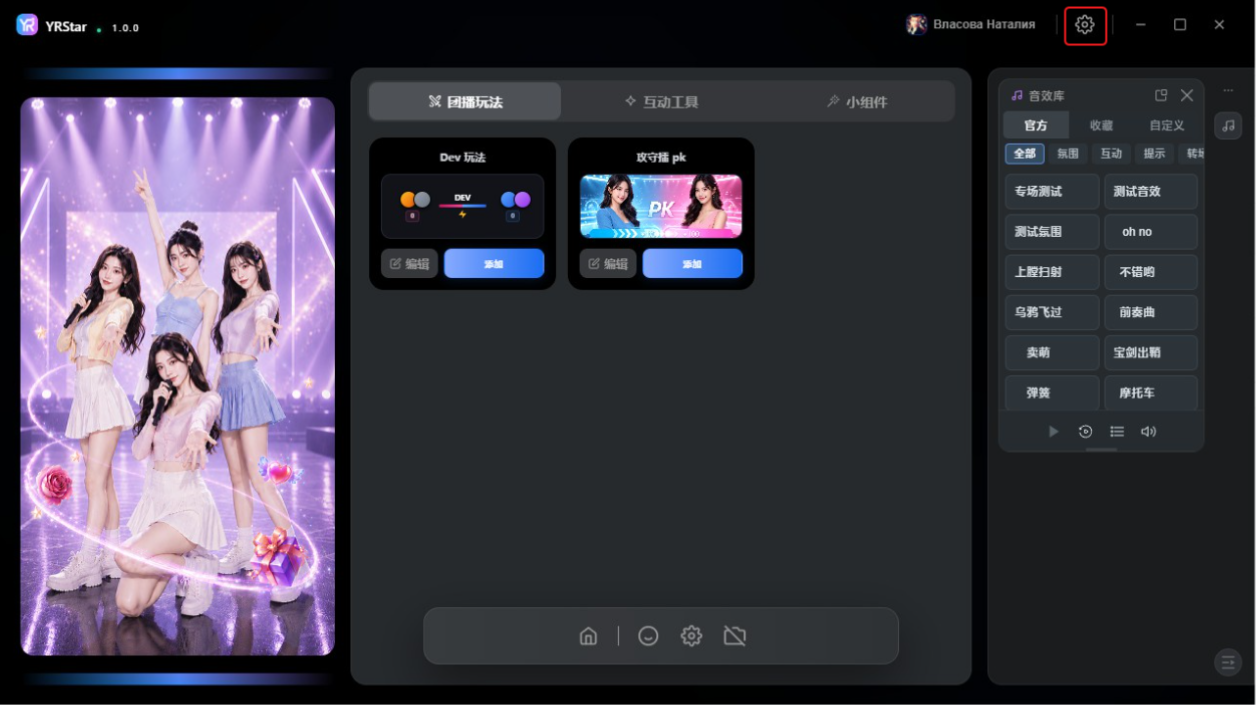
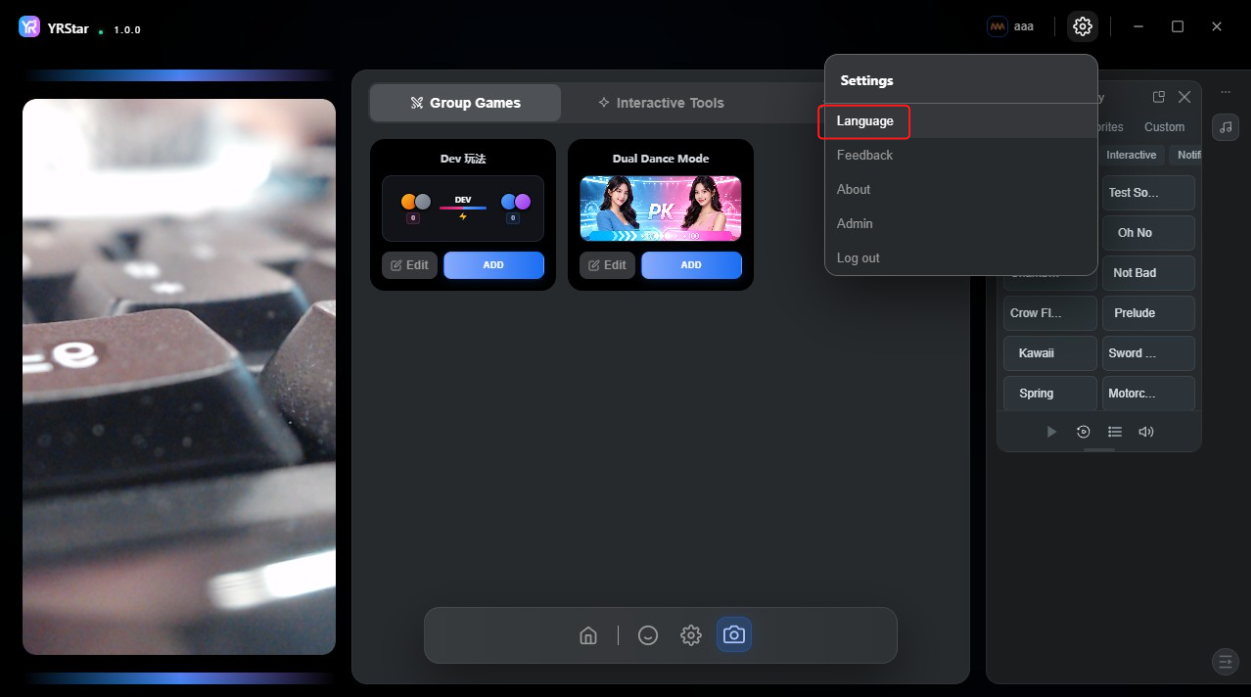
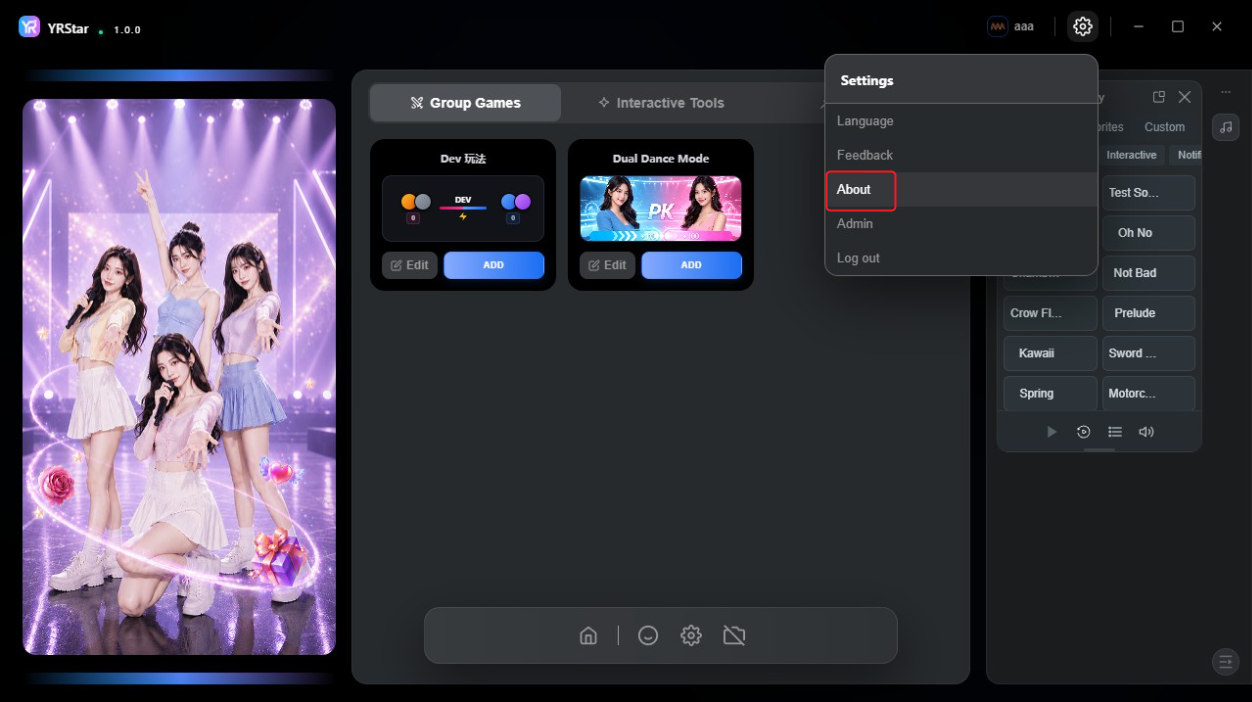
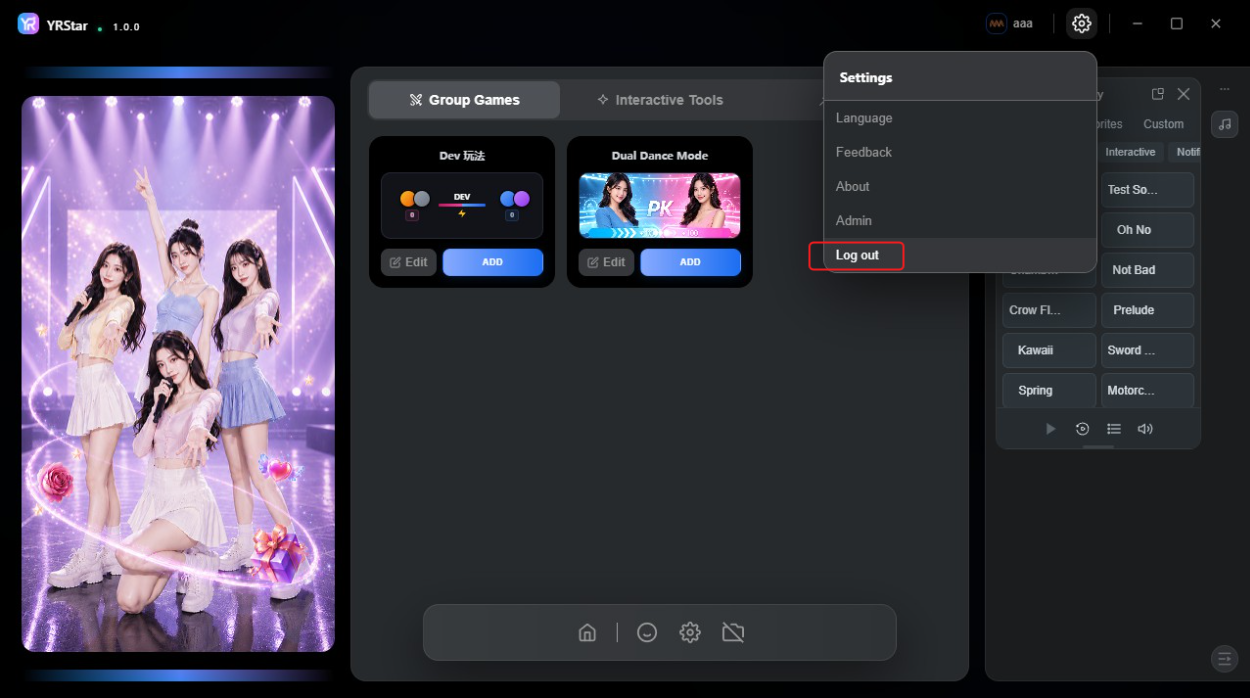
Click the Settings icon in the top-right corner to switch languages, send feedback, view software info, open the admin console, or log out.
3.1 Language
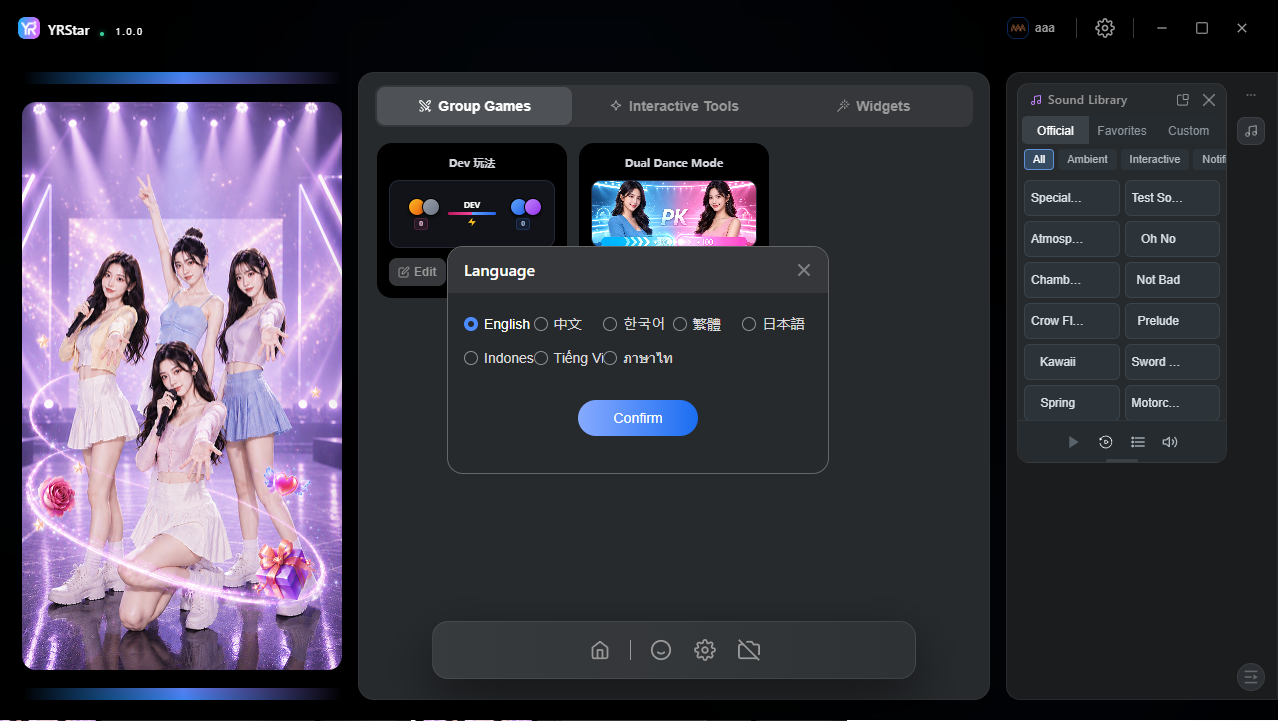
Click Language, select a language, and click Confirm. The interface switches right away. Supported languages: English, 中文, 한국어, 繁體, 日本語, Indonesia, Tiếng Việt, ไทย.
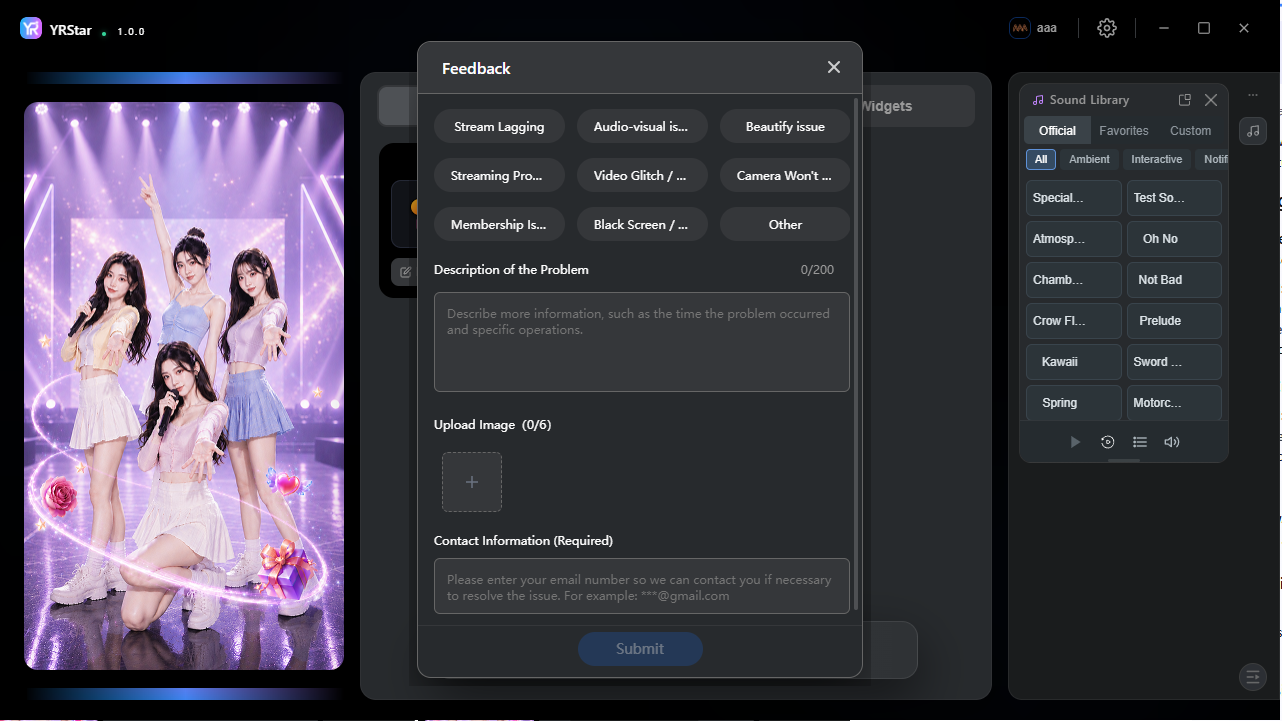
3.2 Feedback
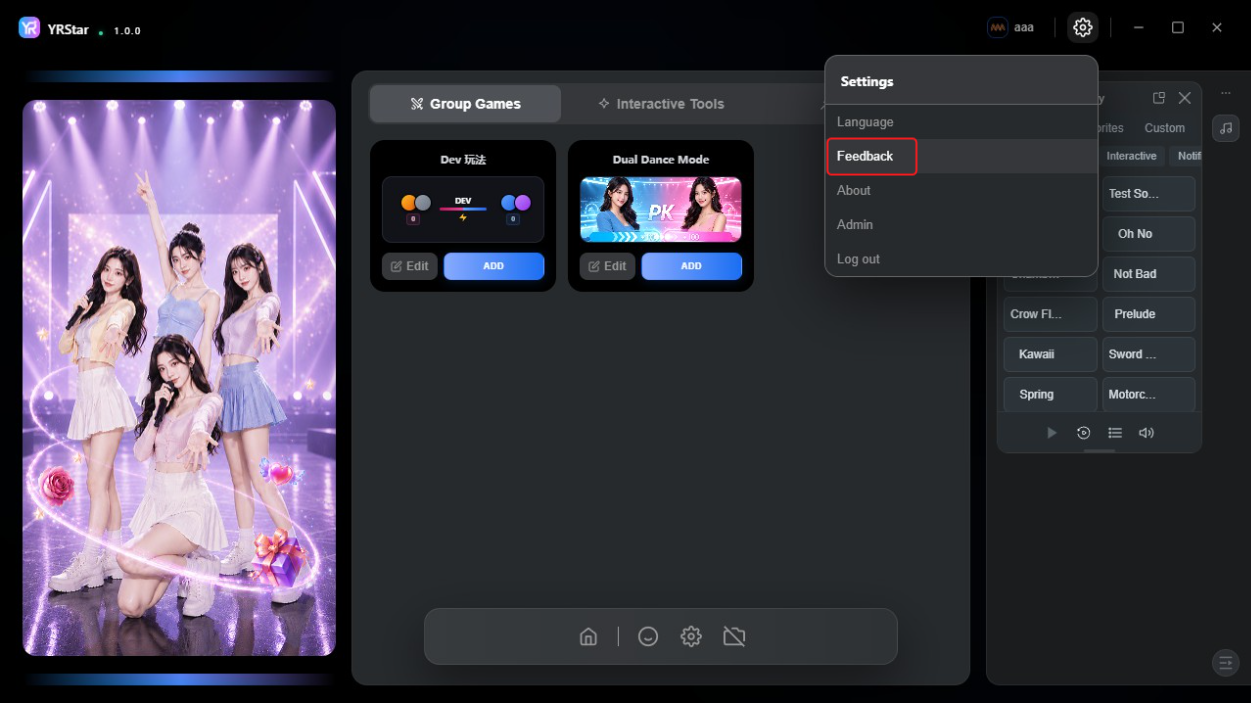
Click Feedback to report a problem:
* Issue type: Stream Lagging, Audio-visual desync, Beautify issue, Streaming problem, Video Glitch, Camera Won't Work, Membership Issue, Black Screen, or Other
* Description of problem: up to 200 characters
* Screenshots: up to 6 images
* Contact information: your email address (required)
Click Submit to send the report.
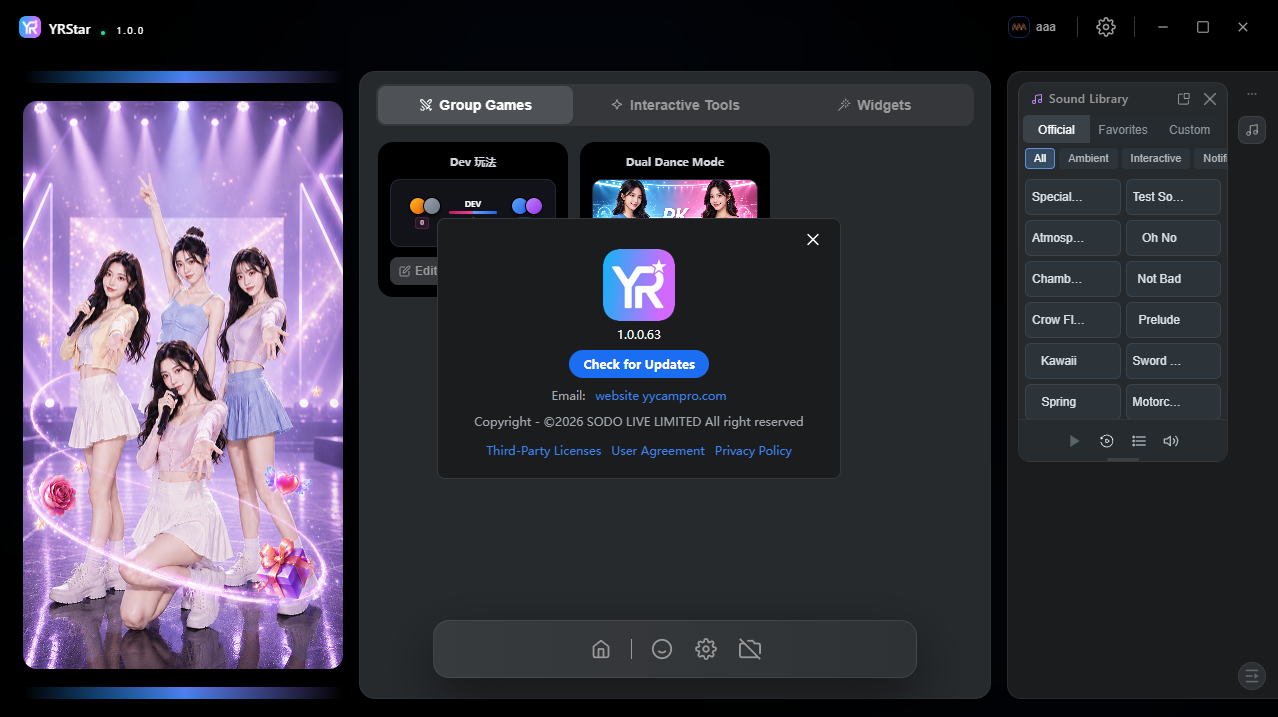
3.3 About
Shows the current version and what's new. Click Check for Updates to install the latest release, which brings the newest features, bug fixes, and security patches.
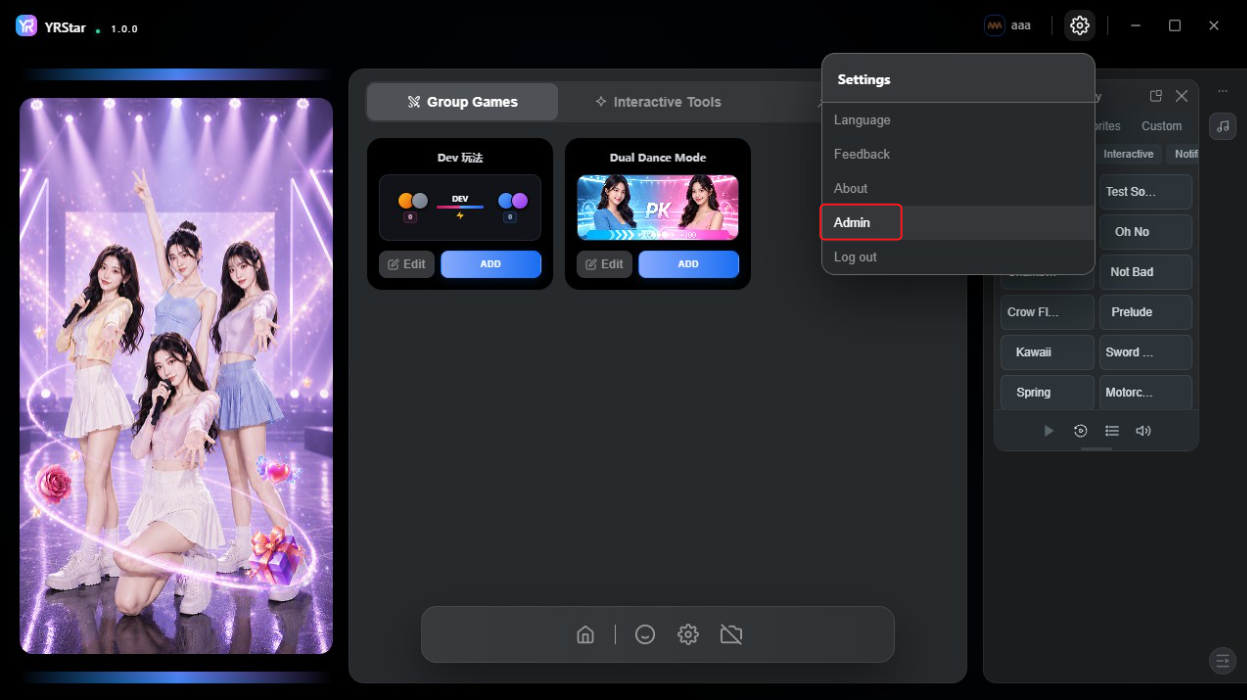
3.4 Admin
Click Admin to open the YRStar Admin sign-in page in your browser, where you manage operator accounts and device binding.
3.5 Log Out
Logs you out of the current operator account and returns to the login page. To use the app again, enter your account info, agree to the User Agreement and Privacy Policy, and log in.
4. Bottom Toolbar
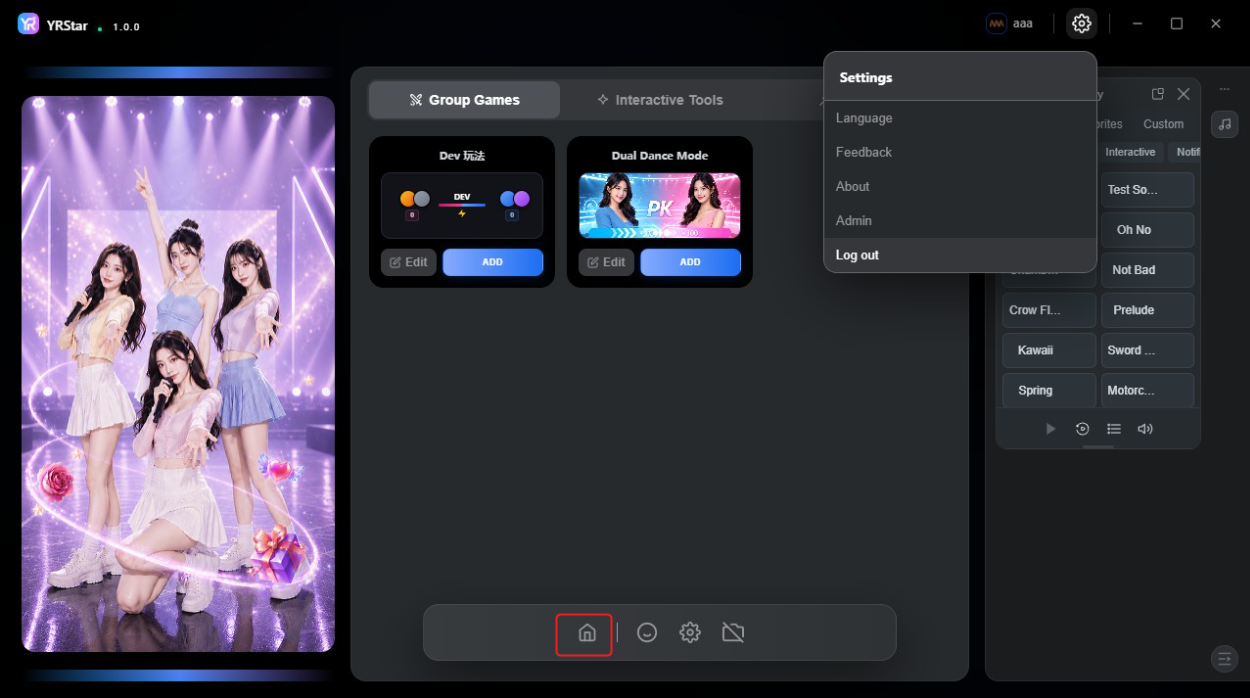
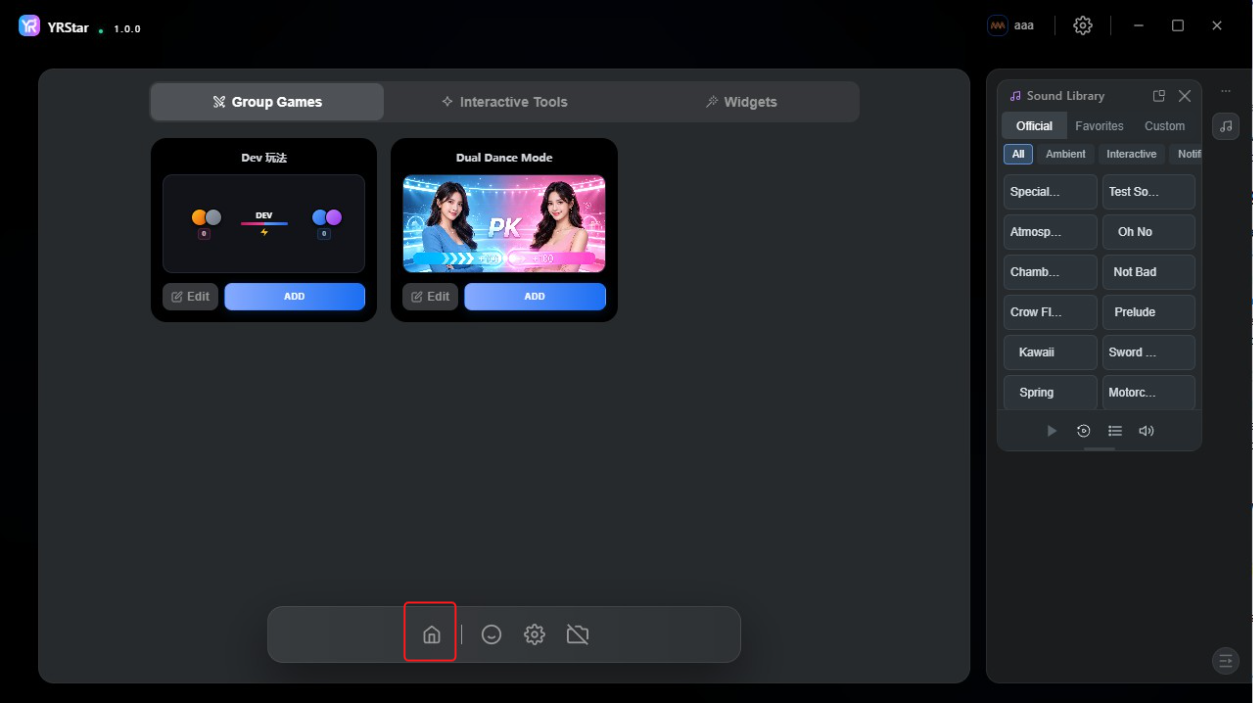
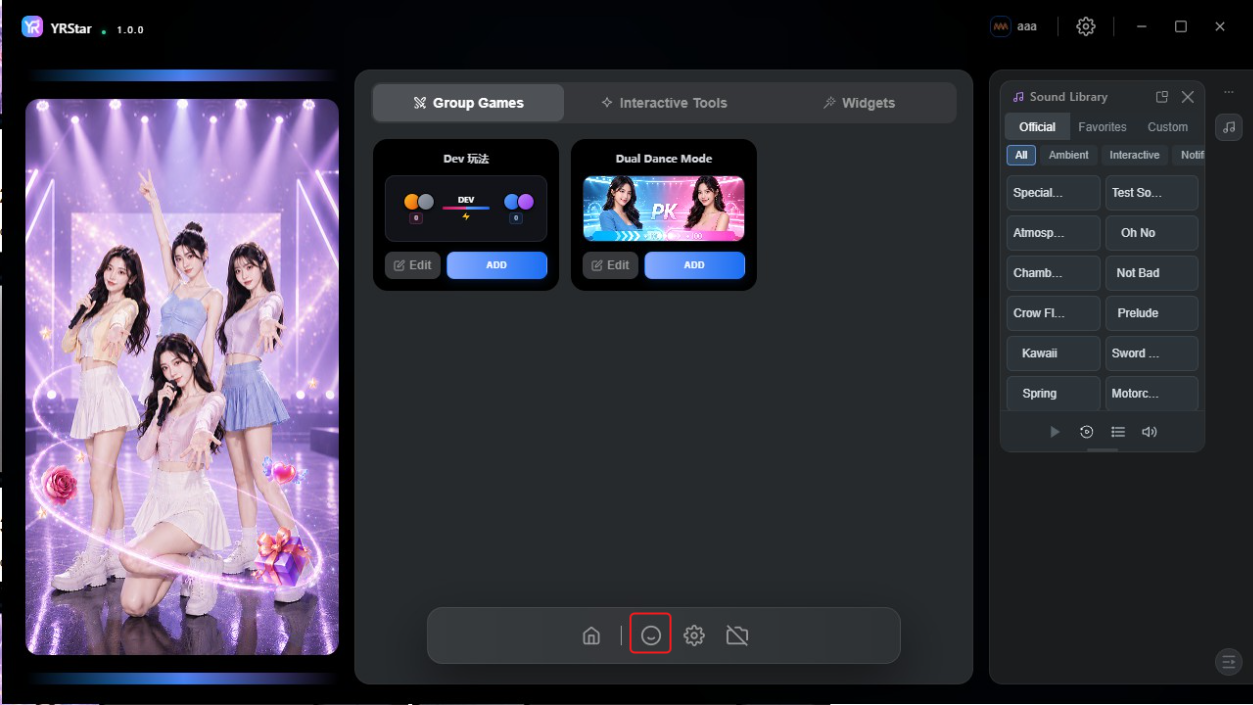
4.1 Icon 1 — Show / Hide Preview
Click to show or hide the live preview on the left. Hiding it gives the Group Games, Interactive Tools, and Widgets panels more room.
4.2 Icon 2 — Beauty Settings
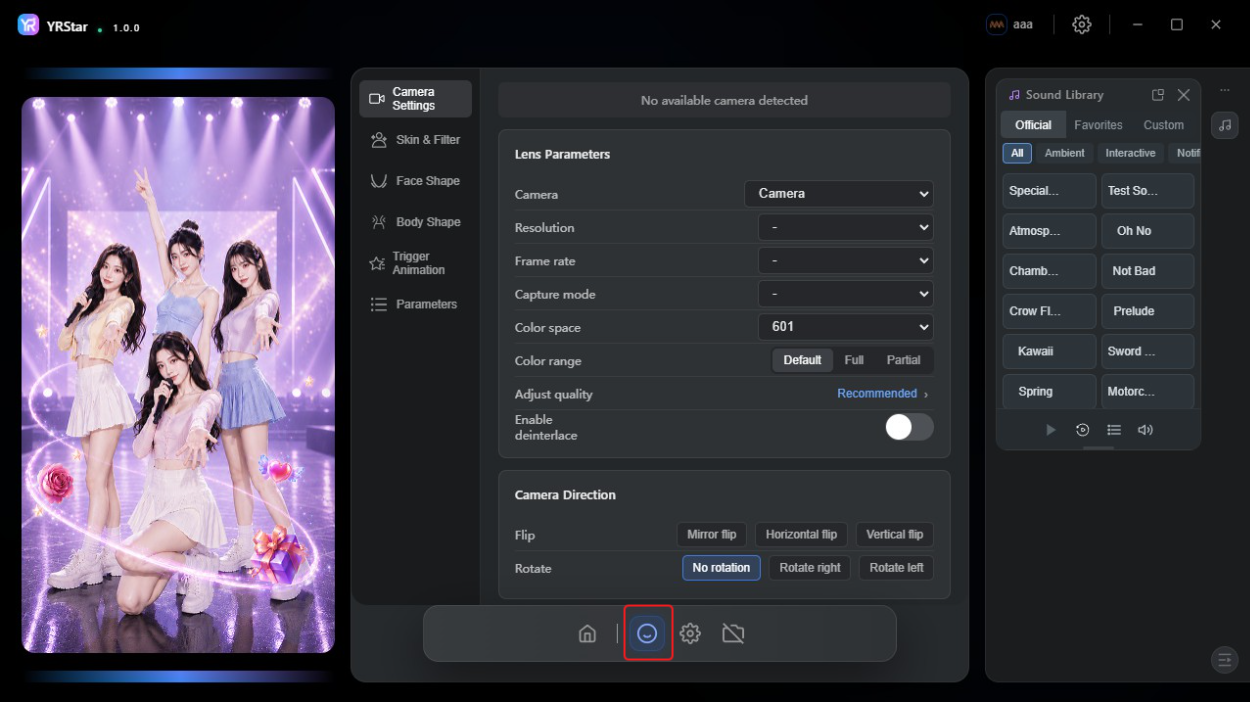
Opens the camera and beauty settings page, which contains Camera Settings, Skin & Filter, Face Shape, Body Shape, Trigger Animation, and Parameters:
* Camera Settings: mirror flip, horizontal flip, vertical flip, and rotation
* Parameters: camera, resolution, frame rate, capture mode, color space, color range, quality, and deinterlacing
Click the icon again to close the page.
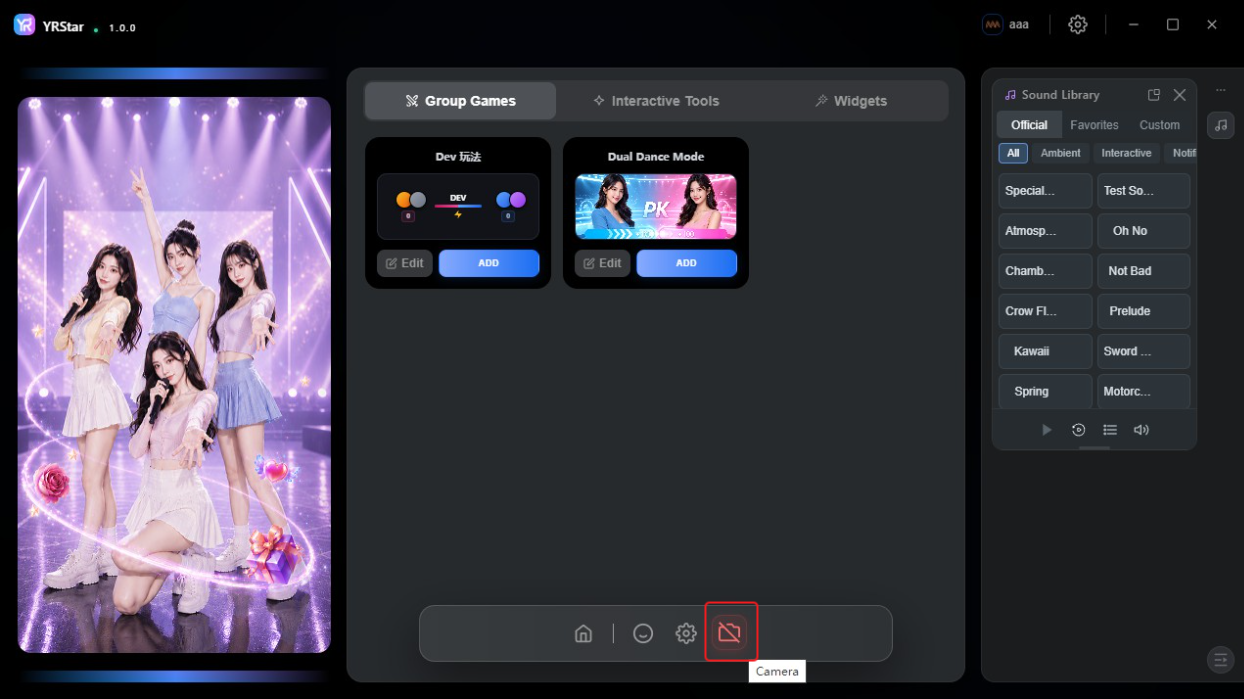
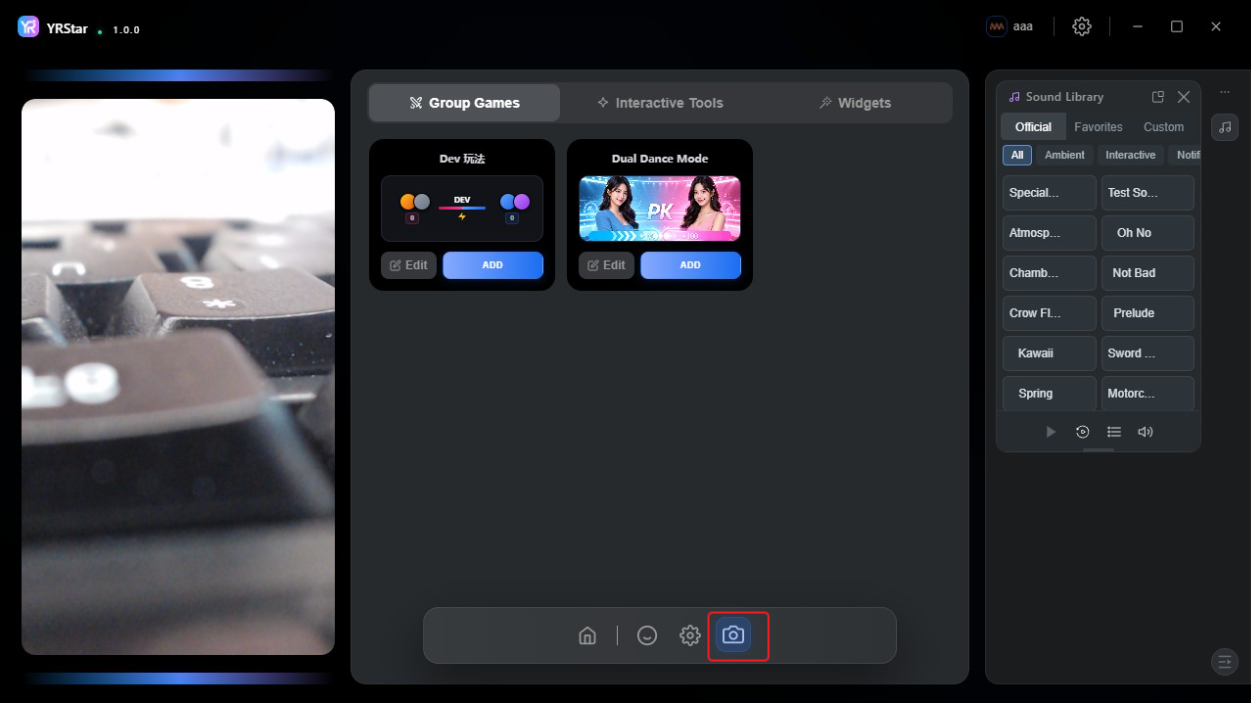
4.3 Icon 4 — Camera On / Off
Click to turn the camera on or off.